How PointCalc works
PointCalc turns your match screenshots and scores into broadcast-ready graphics. Whatever you’re making, it’s always the same three steps.
Every design — points table, warheads, fraggers, slot list, poster and certificate — updates automatically from your latest calculation.
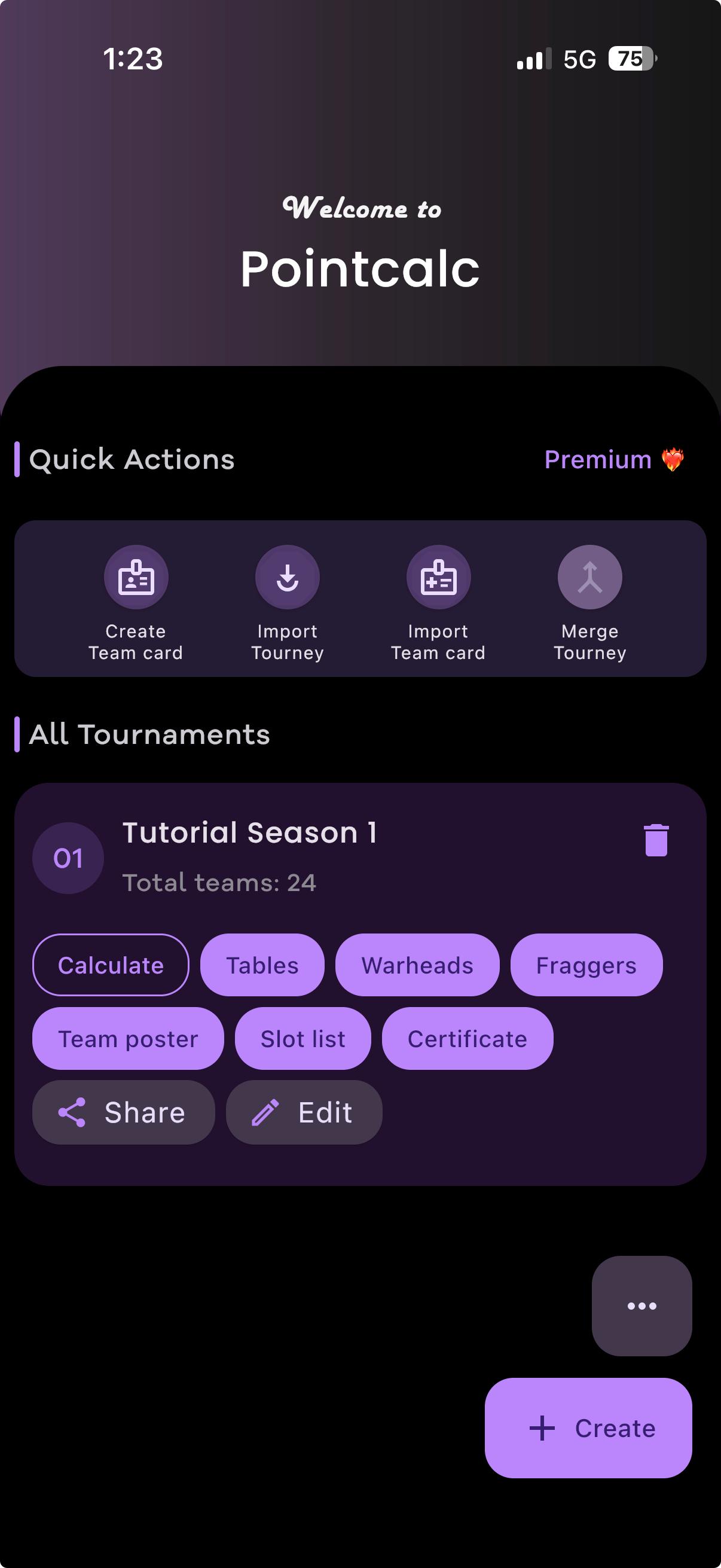
Everything starts on the home screen
When you open PointCalc you land here. Every tournament you create is listed, and each one has one-tap buttons for calculating a match and for every design. The Quick Actions row up top holds shortcuts for team cards, importing and merging.
Install & set up
A one-time setup so every design is ready to use.
Install and let the designs download
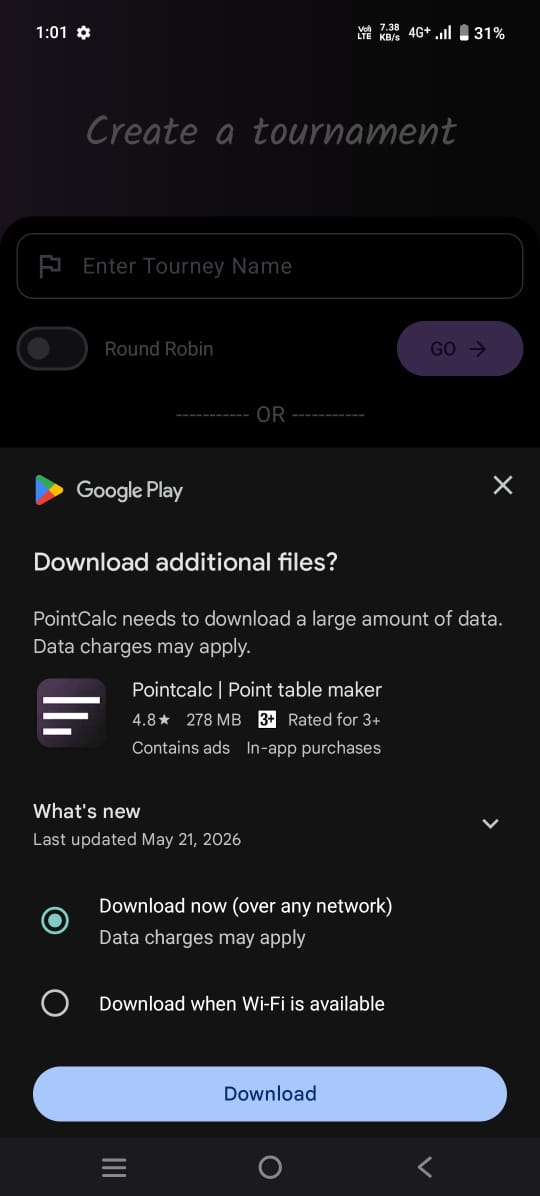
The first time you open the app it downloads its design pack. On Android you might see a quick “download additional files” message; on iPhone it just starts on its own.
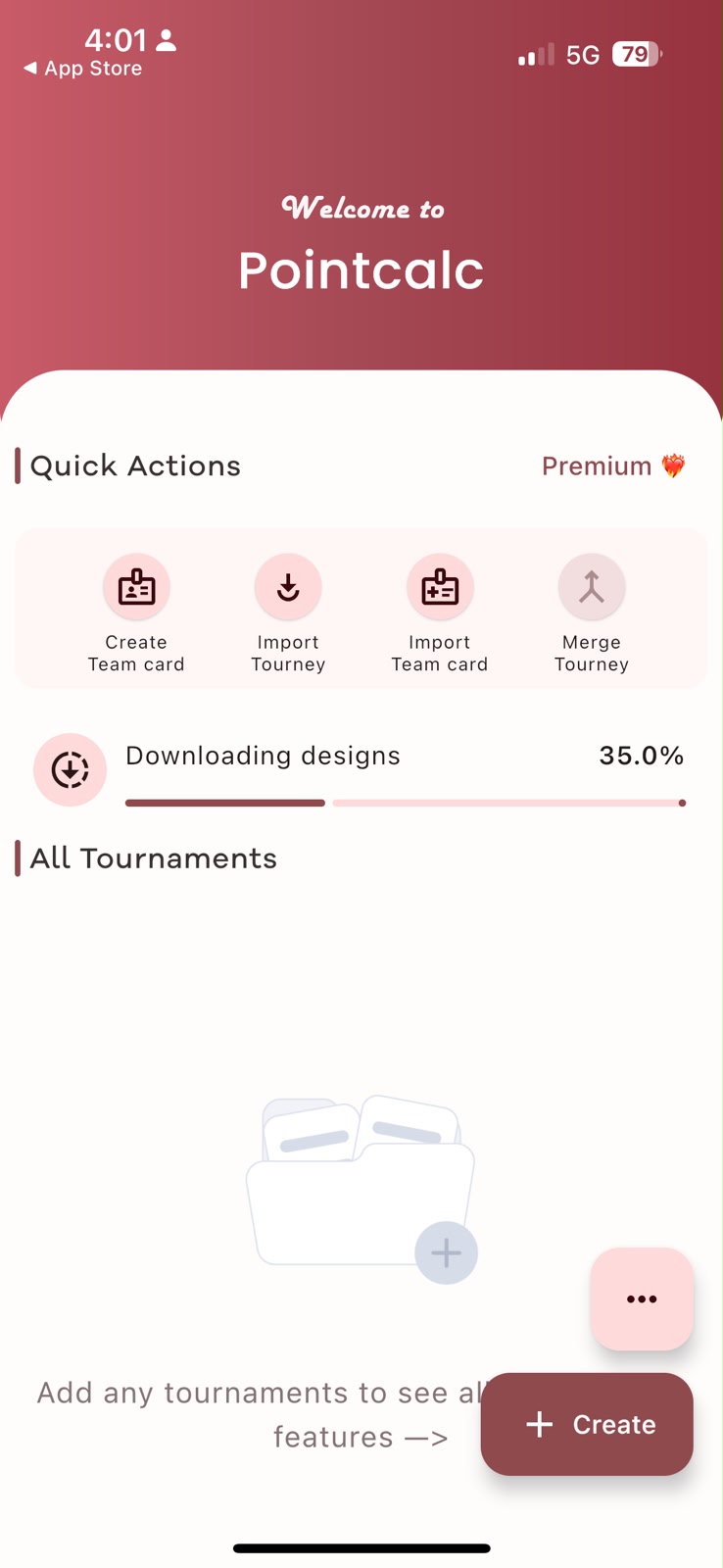
Wait for the download bar to finish
You’ll see a “Downloading designs” bar on the home screen — it looks the same on Android and iPhone. Let it finish and the full set of designs is ready.
Create a tournament
Set up your event, your scoring, and your teams.
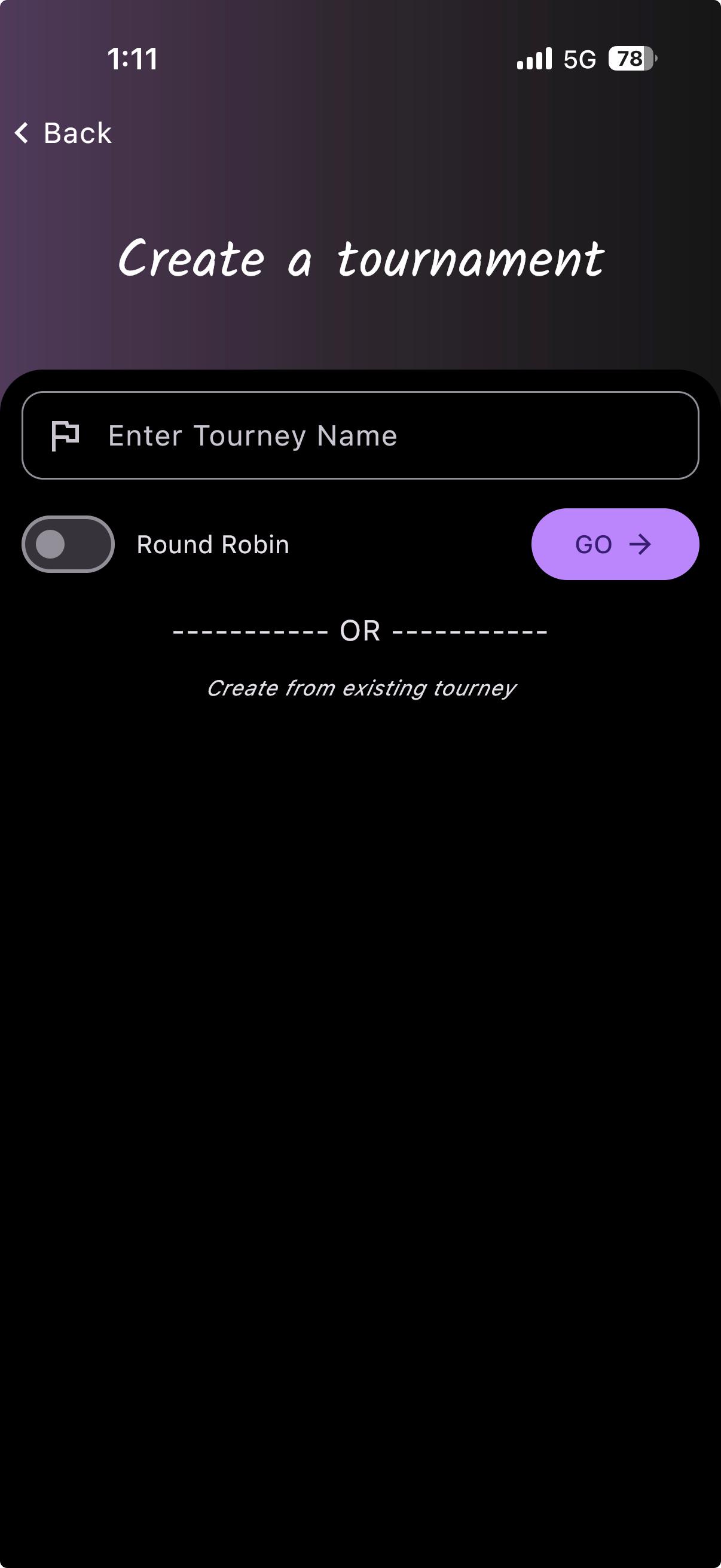
Start a new tournament
Type a name and tap GO. Turn on Round Robin if that’s your format.
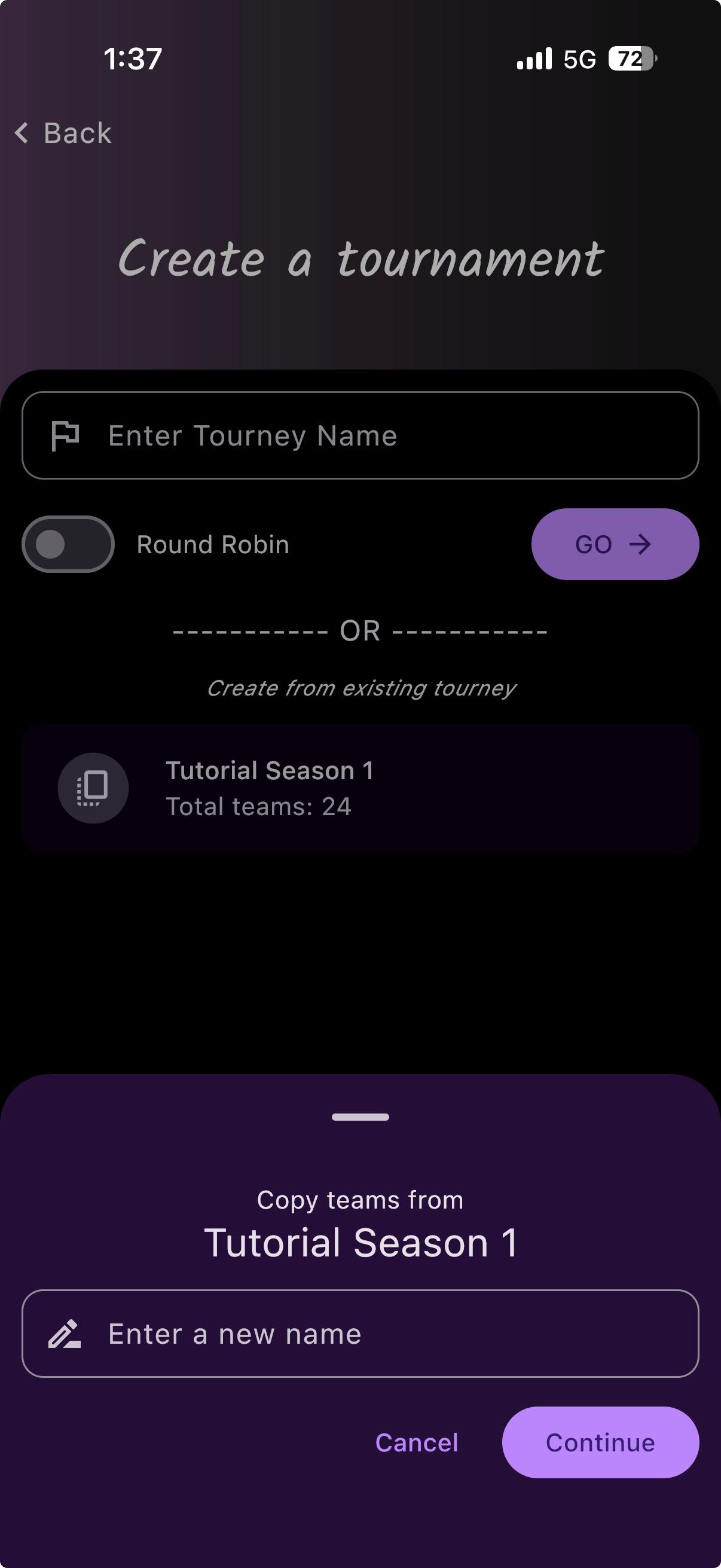
…or copy last week’s teams
Instead of starting empty, scroll down and pick a past tournament to copy its teams into a new one.
Set your scoring
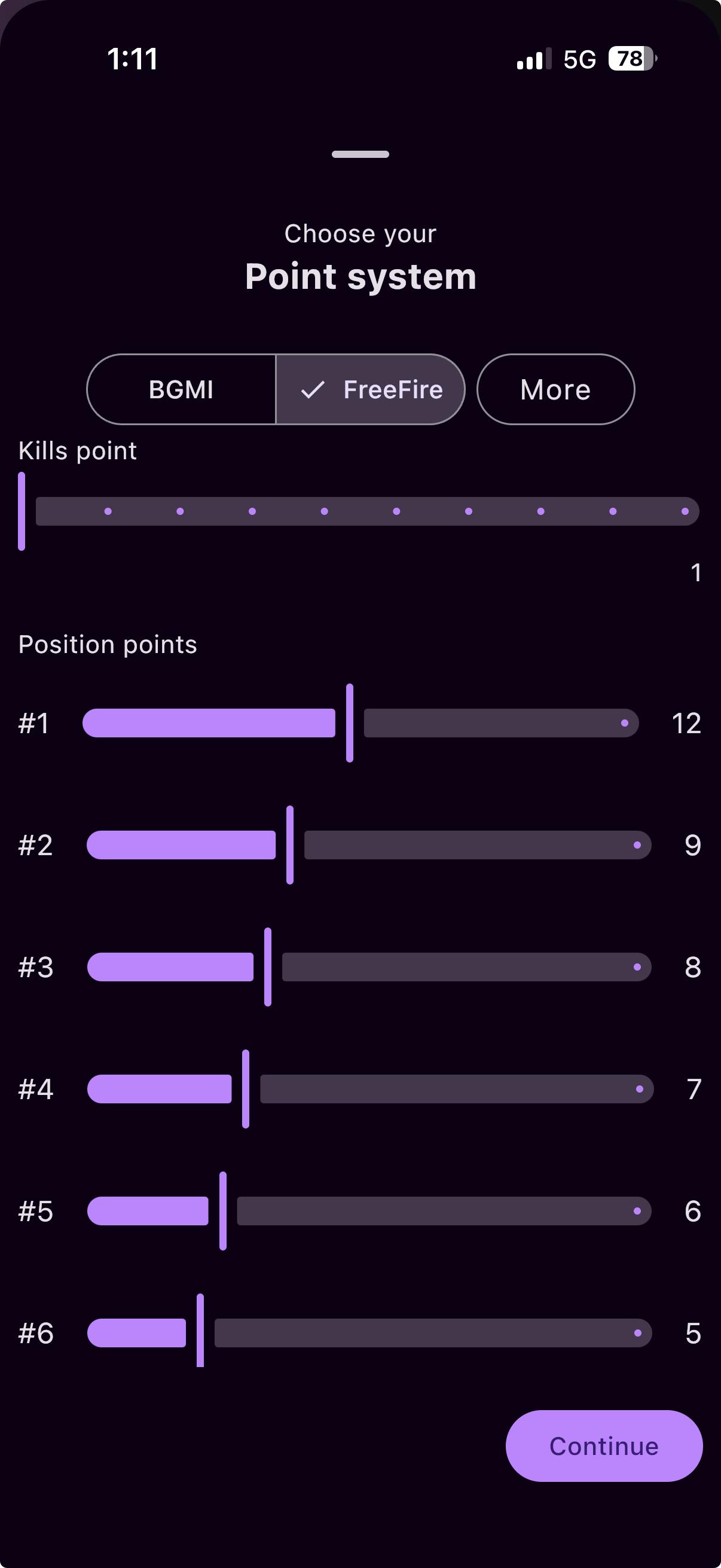
Choose a point system
Pick a ready-made system (BGMI or Free Fire) or set your own kill and placement points.
Add your teams
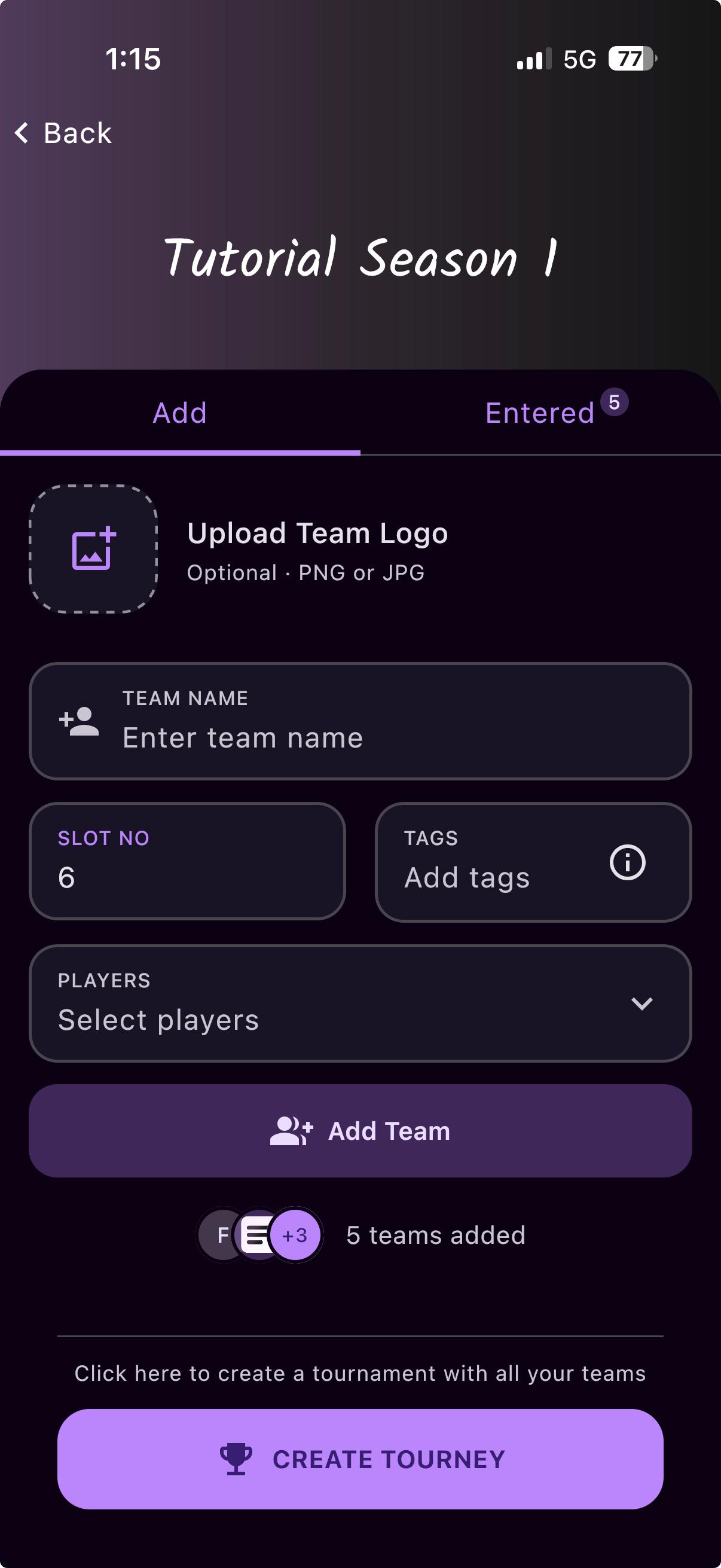
Add each team
For every team add a name — logo, slot number, tags and players are optional — tap Add Team, and repeat. When everyone’s in, tap Create Tourney. The counter shows how many teams you’ve added so far.
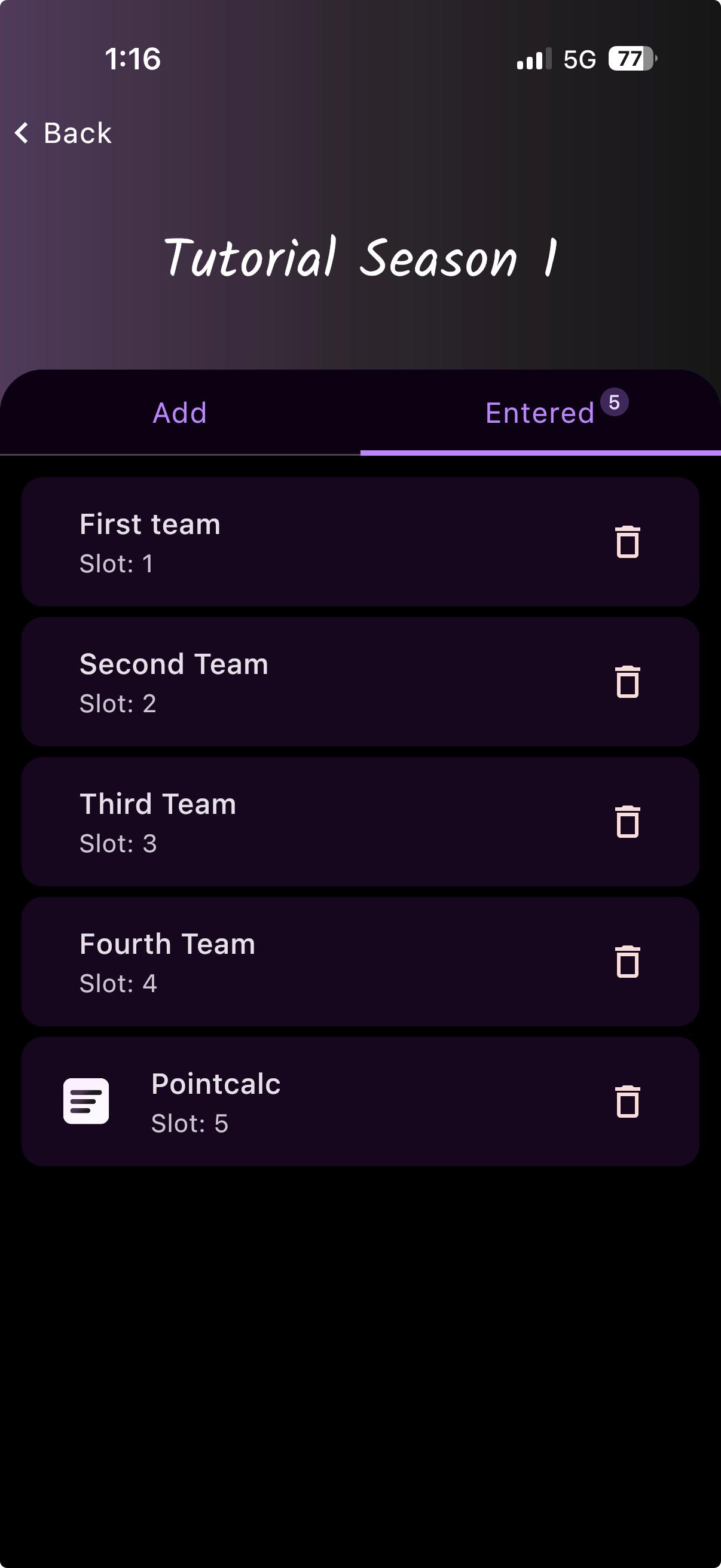
Check your team list
The Entered tab shows everyone you’ve added. Tap the bin icon next to a team to remove it.
Calculate a match
After every match you add its results. Do it by hand, or let PointCalc AI read your screenshots for you.
By hand
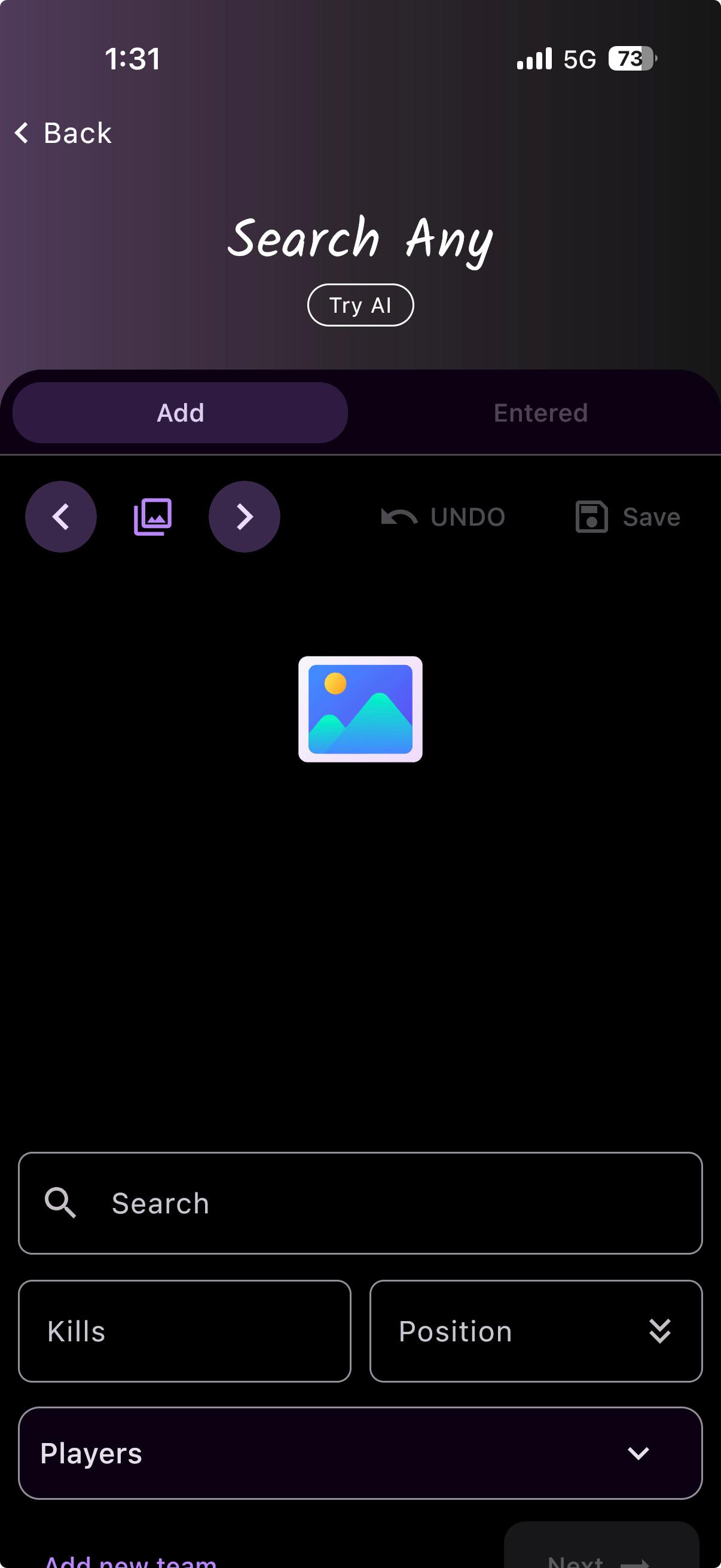
Open Calculate and pick a team
On the Calculate screen you choose a team first — that fills in the fields below so you can enter its result.
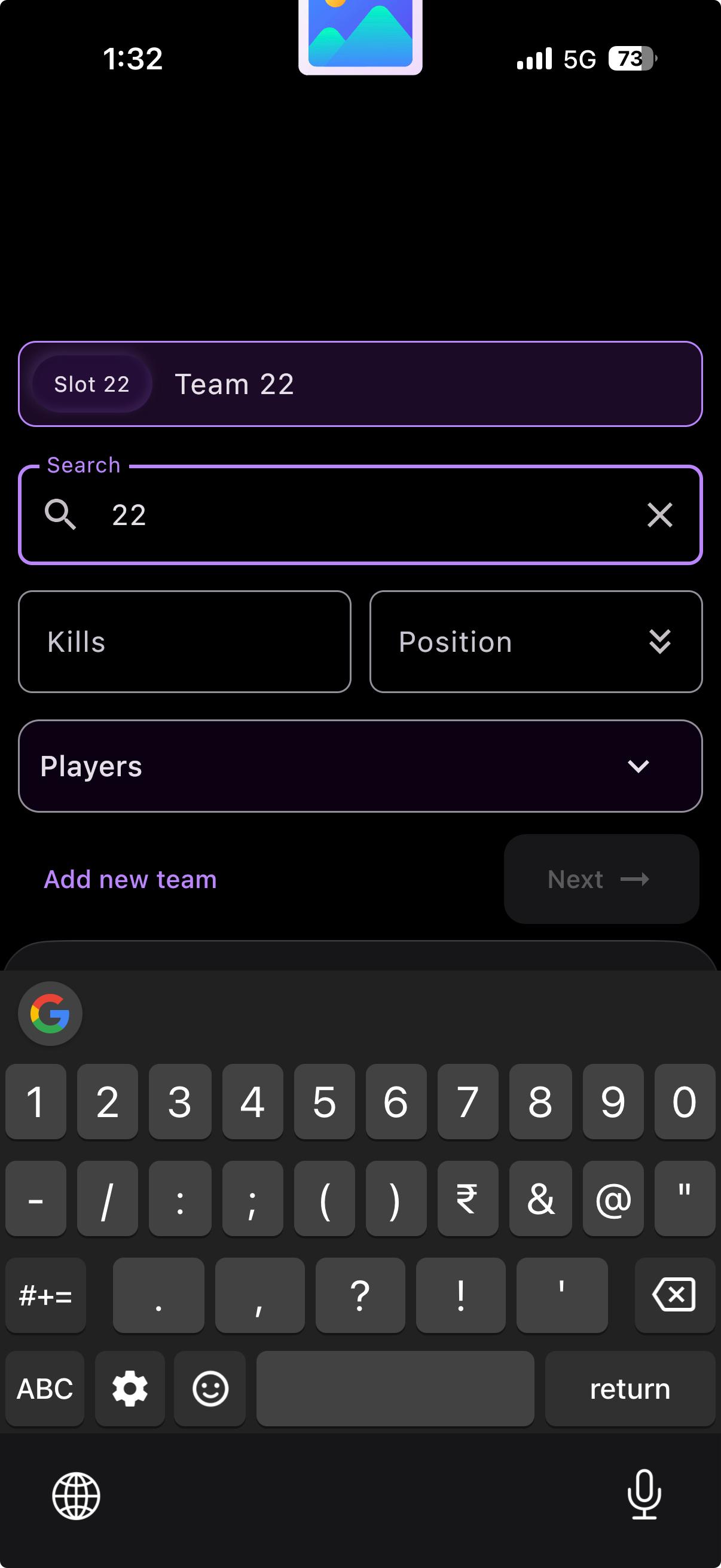
Find a team quickly
Search by team name, slot number, any player’s name, or a tag, then tap the top suggestion to select it.
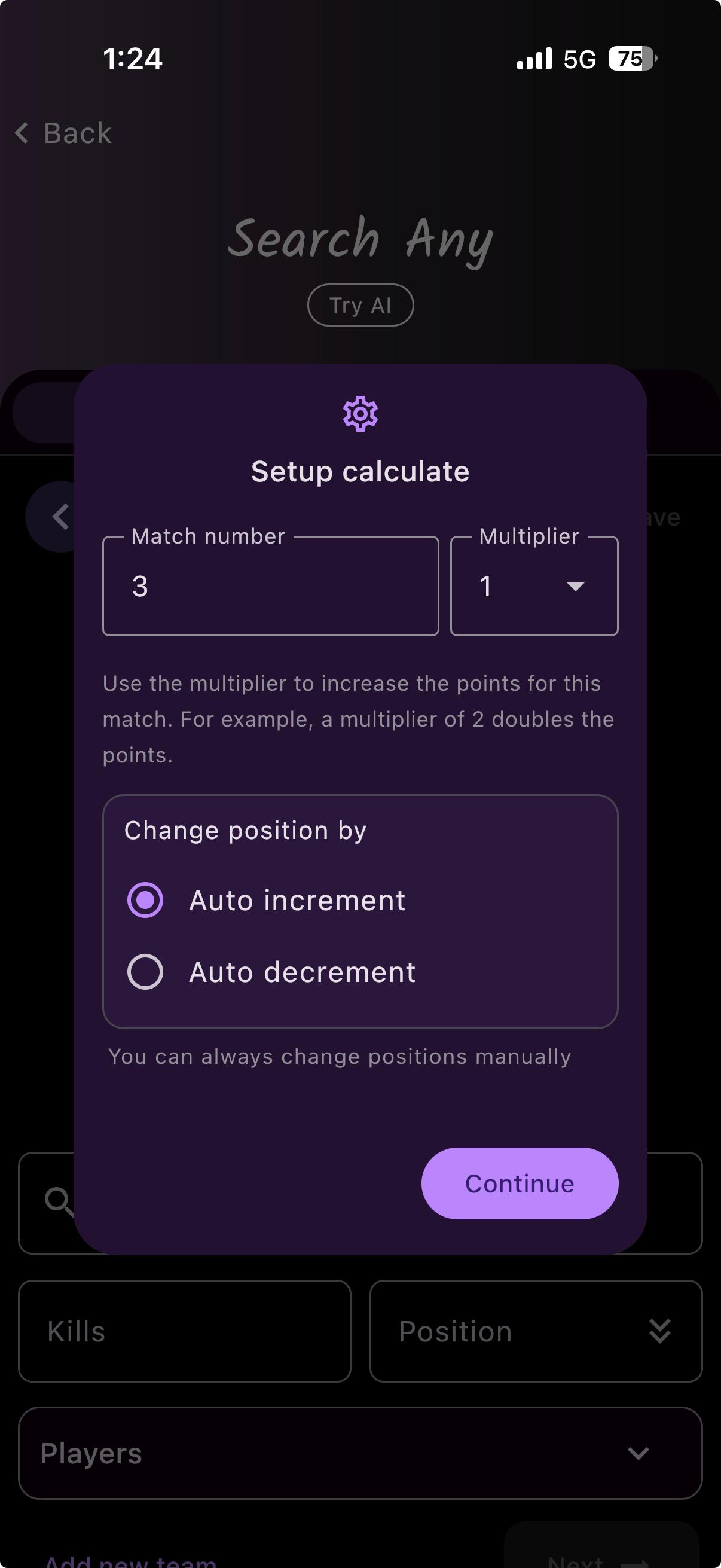
Set the match number and multiplier
Before you start, set the match number. Add a multiplier if this match counts for more (a ×2 grand final, say), and choose how the placement fills in as you go.
Keep the result screenshot in view
You can drop the match’s result screenshot into the preview and zoom into it right here — no flipping between your gallery and PointCalc while you type kills and placement.
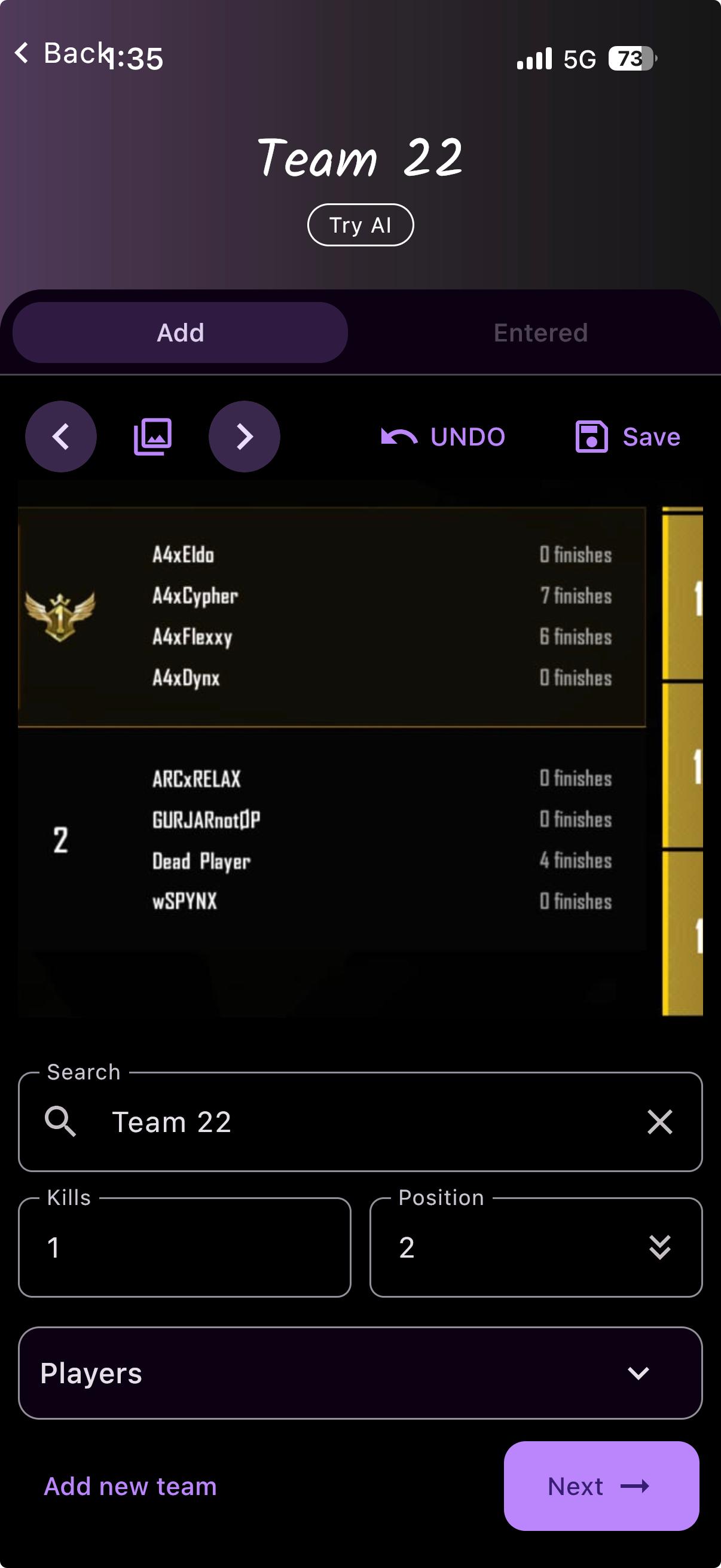
Review what you entered
The Entered tab lists every team’s placement, kills and total for the match. Leave kills or placement blank for a team that scored none, and touch-and-hold a row to remove it.
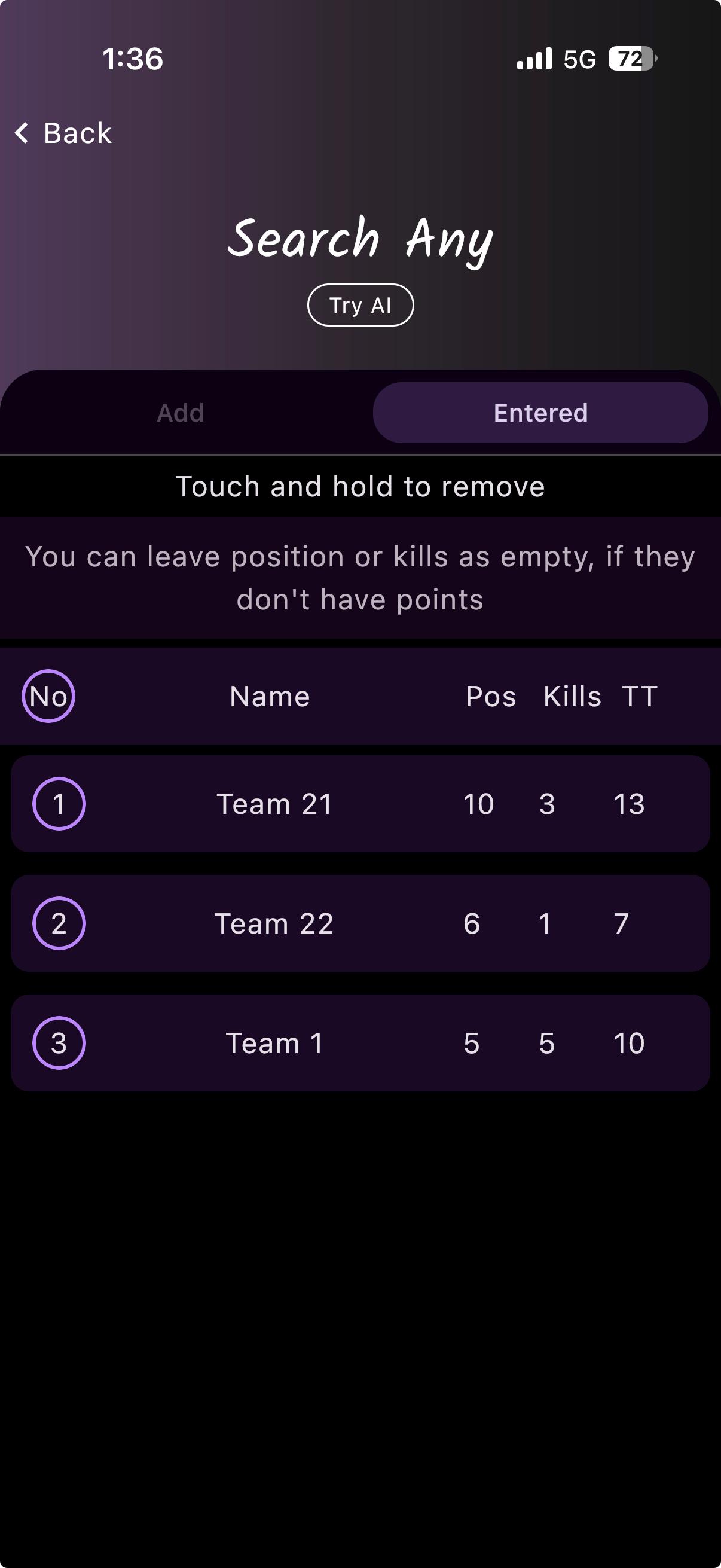
With PointCalc AI
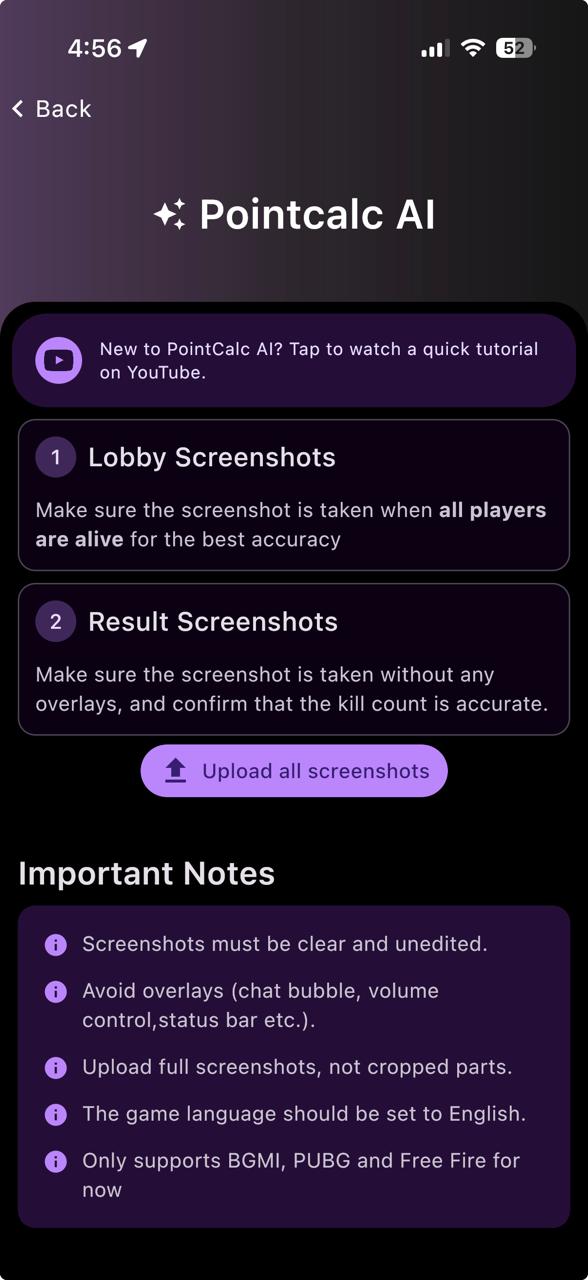
Upload your screenshots
Two kinds: lobby screenshots (taken while everyone’s still alive) and result screenshots (with no overlays on screen). Then tap “Upload all screenshots”.
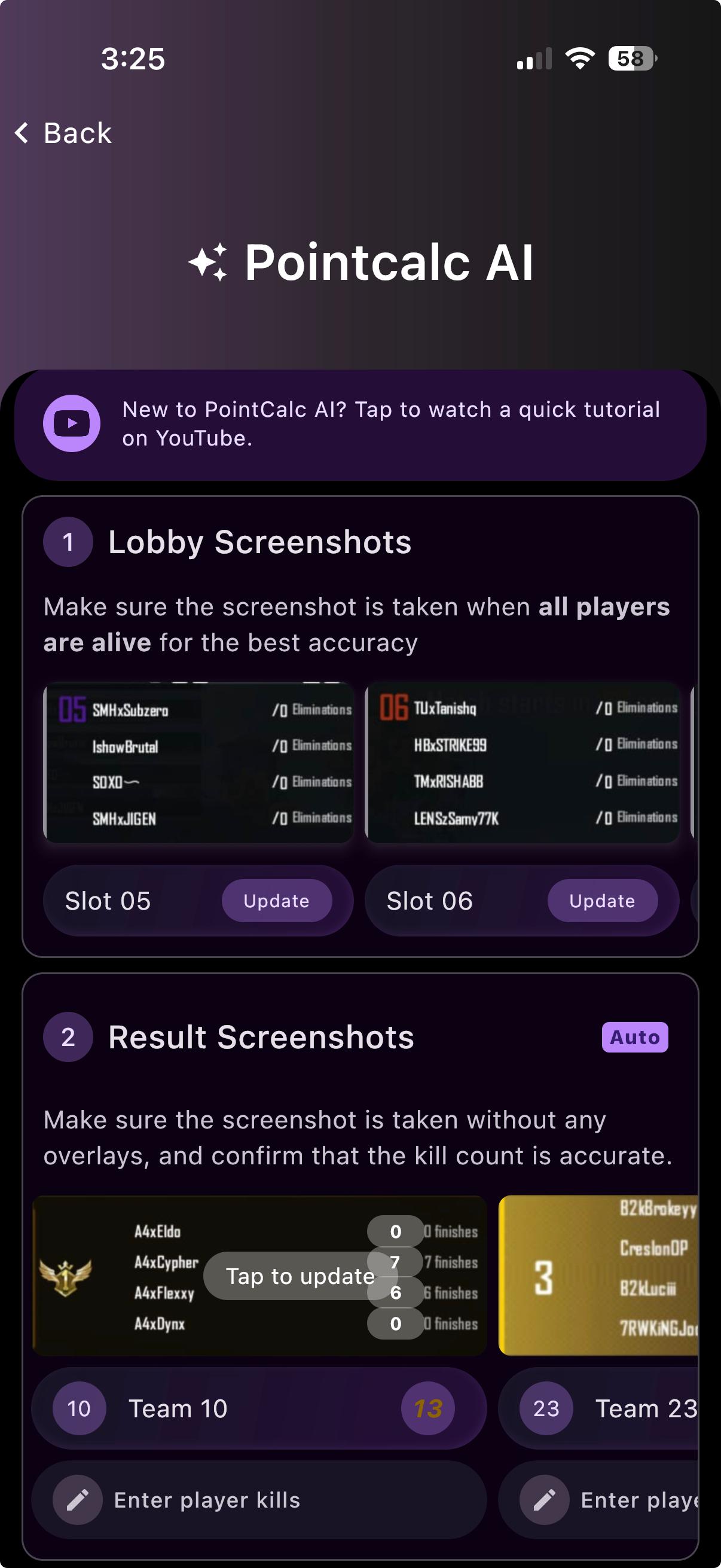
Let PointCalc read them
Once uploaded, you’ll see each slot it picked up. Tap “Update” on any slot to check or fix what it found.
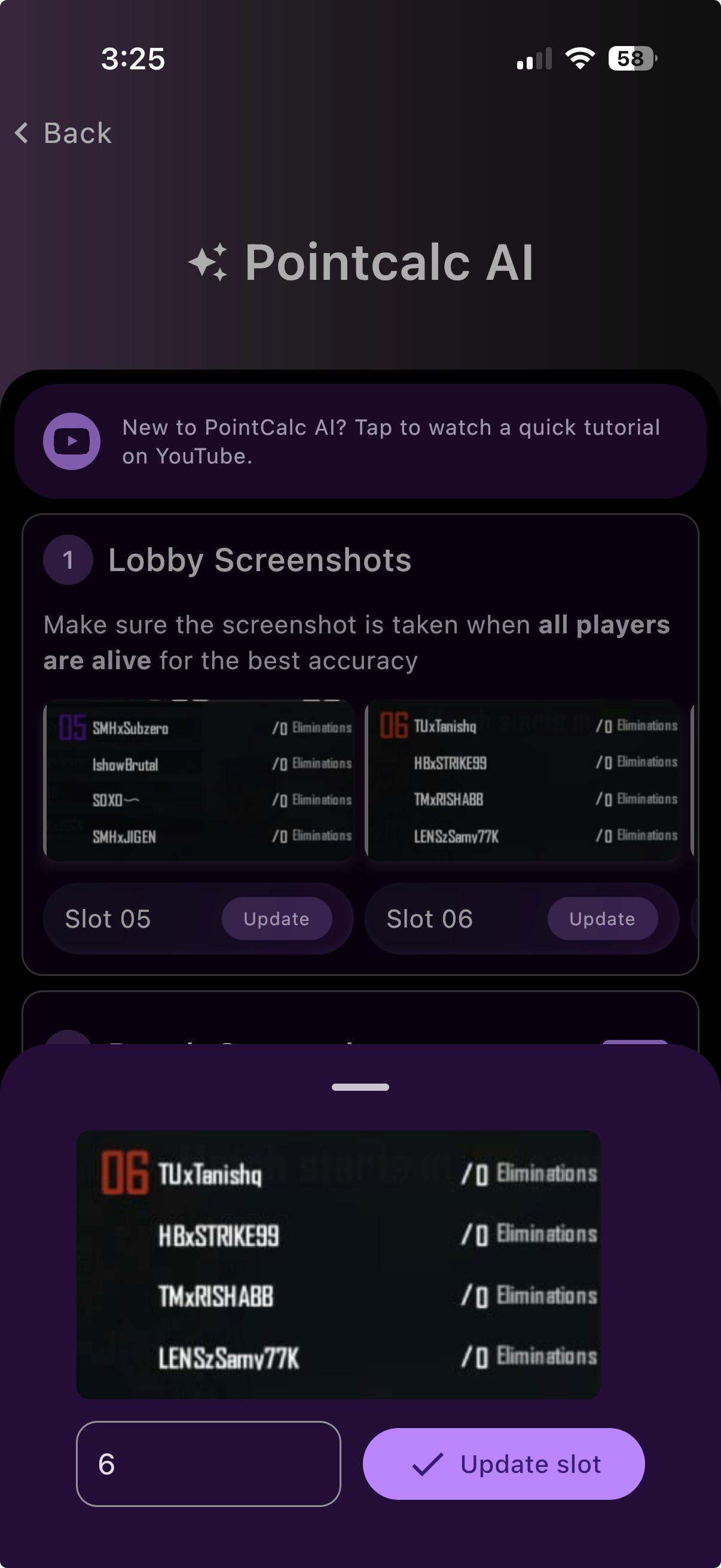
Fix a slot number
If a lobby slot came out wrong, tap it and set the right slot number.
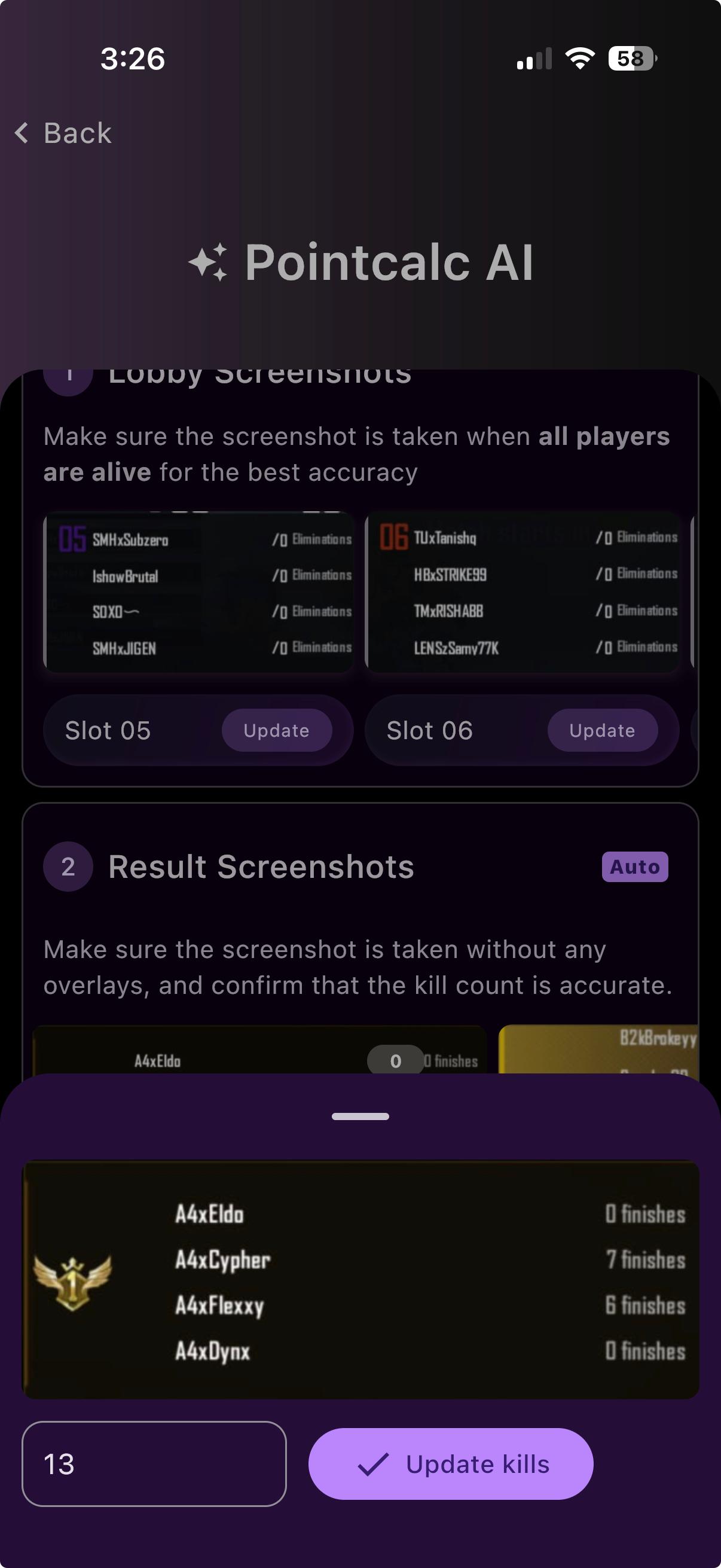
Fix a team’s kills
Tap a team to correct its total kills if the count looks off.
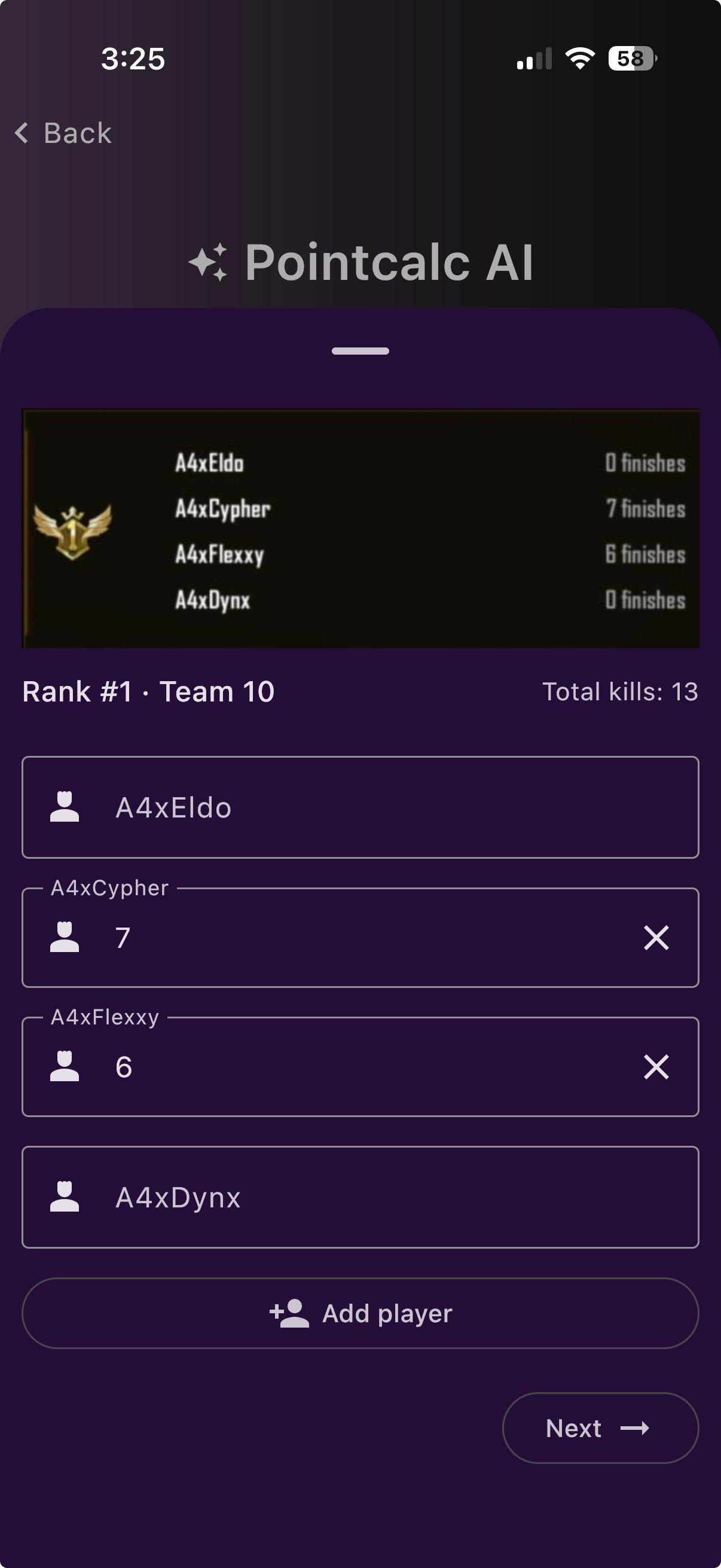
Add player kills (for Fraggers)
Open a team to enter each player’s kills — this is what powers the Fraggers and MVP designs. The first time you add each player’s name and kills; after that it fills in automatically, and you can correct anything against the screenshot.
If something doesn’t match
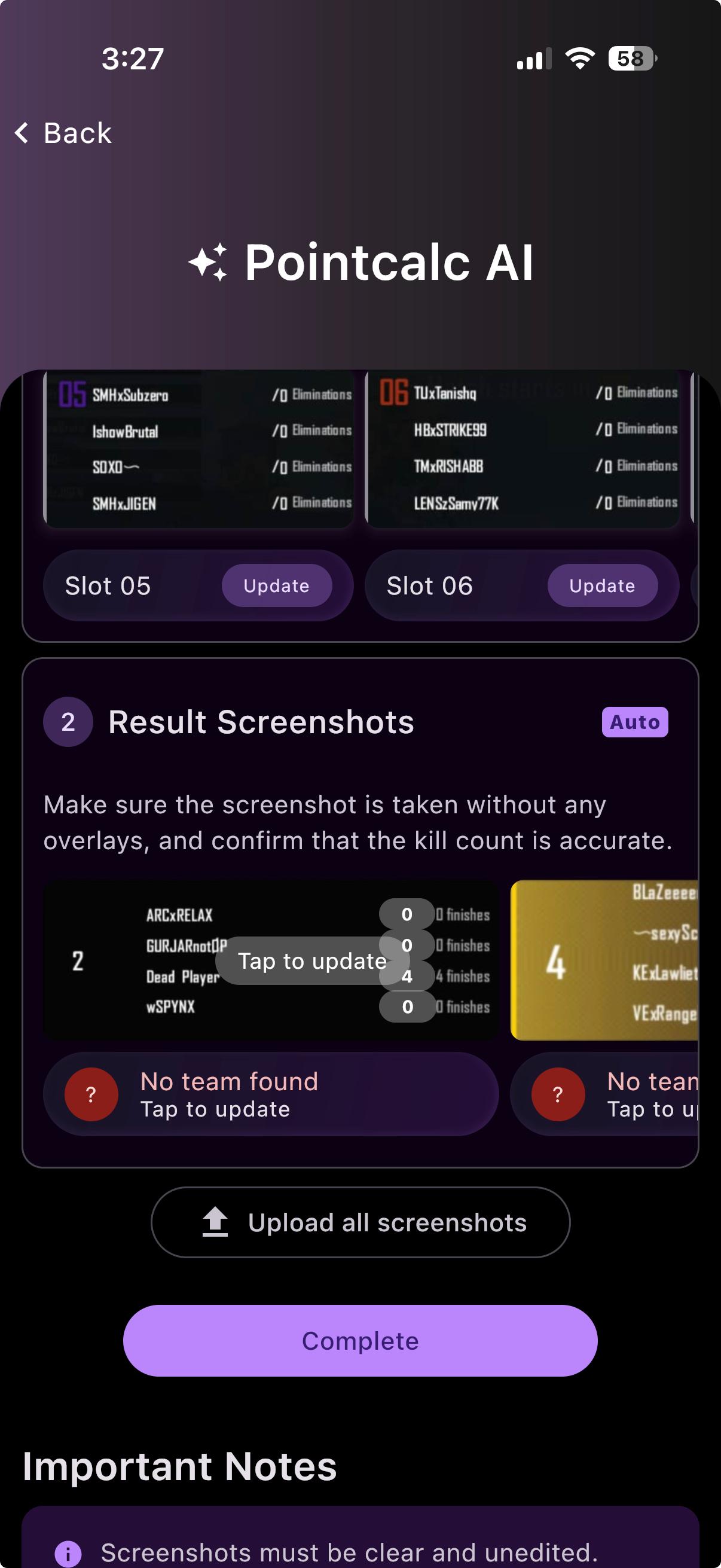
“No team found”
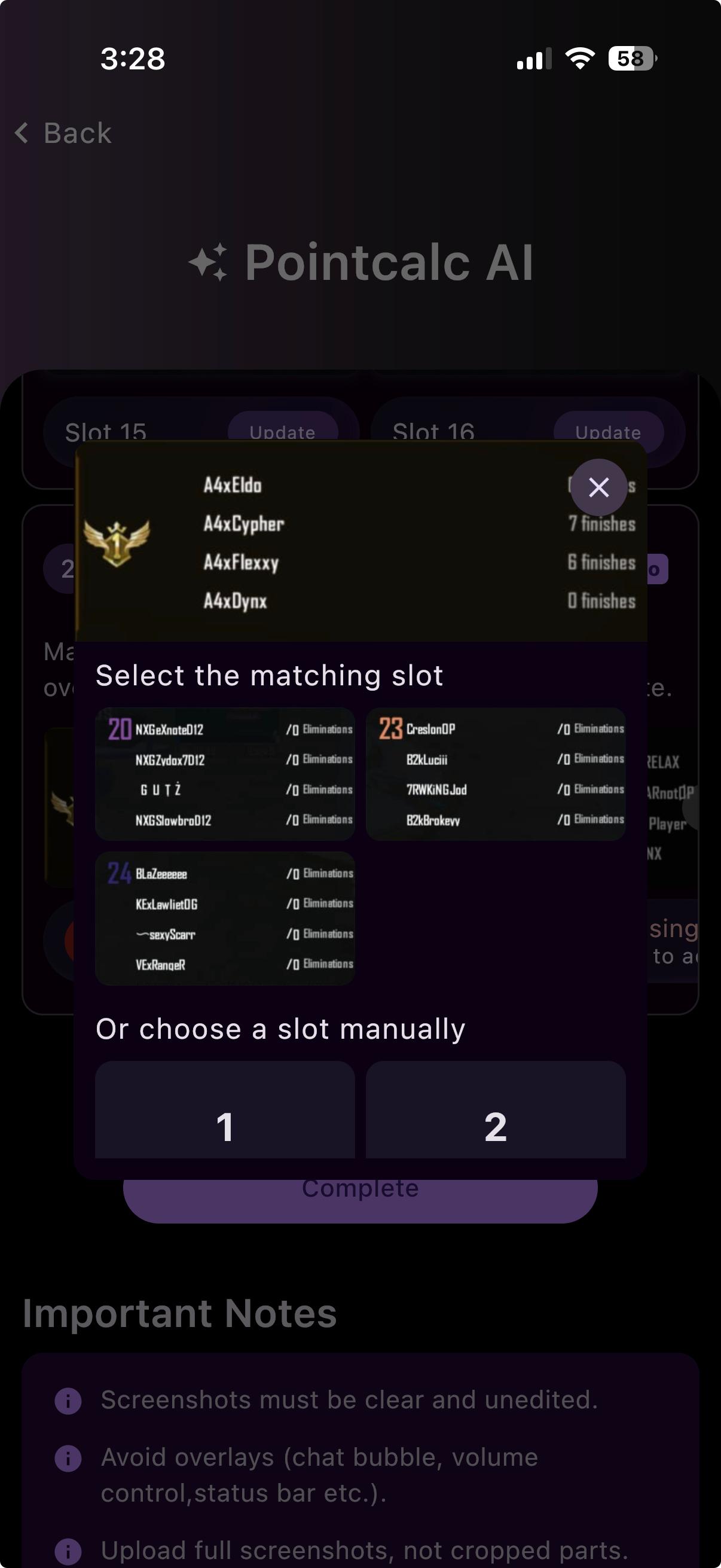
Now and then the AI can’t match a screenshot to a team. Don’t worry — tap the flag and pick the right team from the unassigned ones in your slot list. If that team isn’t in the screenshot at all, the unassigned slot numbers are listed with their team names too.
Pick the matching slot
Choose the slot whose players match the screenshot, or set the slot by hand.
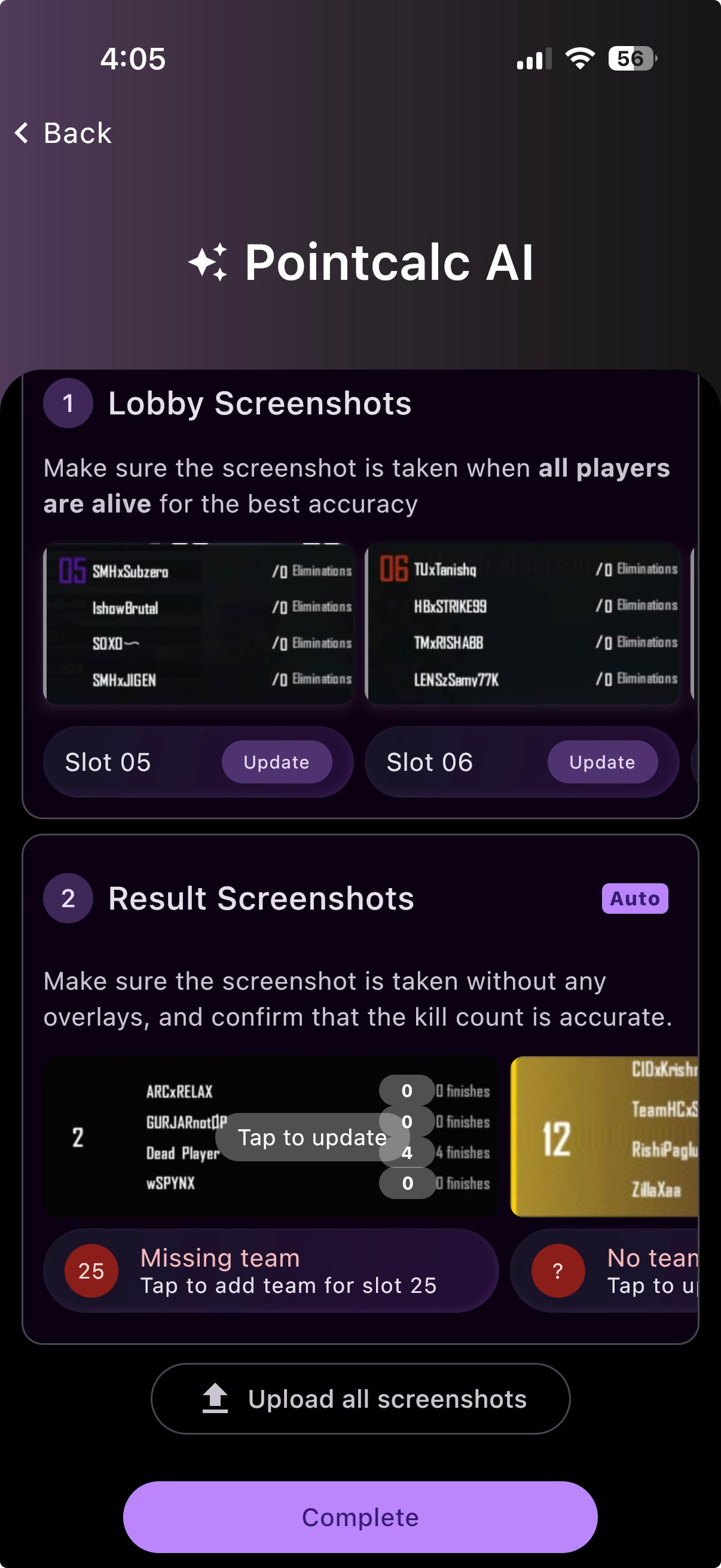
“Missing team”
If a slot has no team at all, you’ll see “Missing team”. Tap it to add that team for the slot.
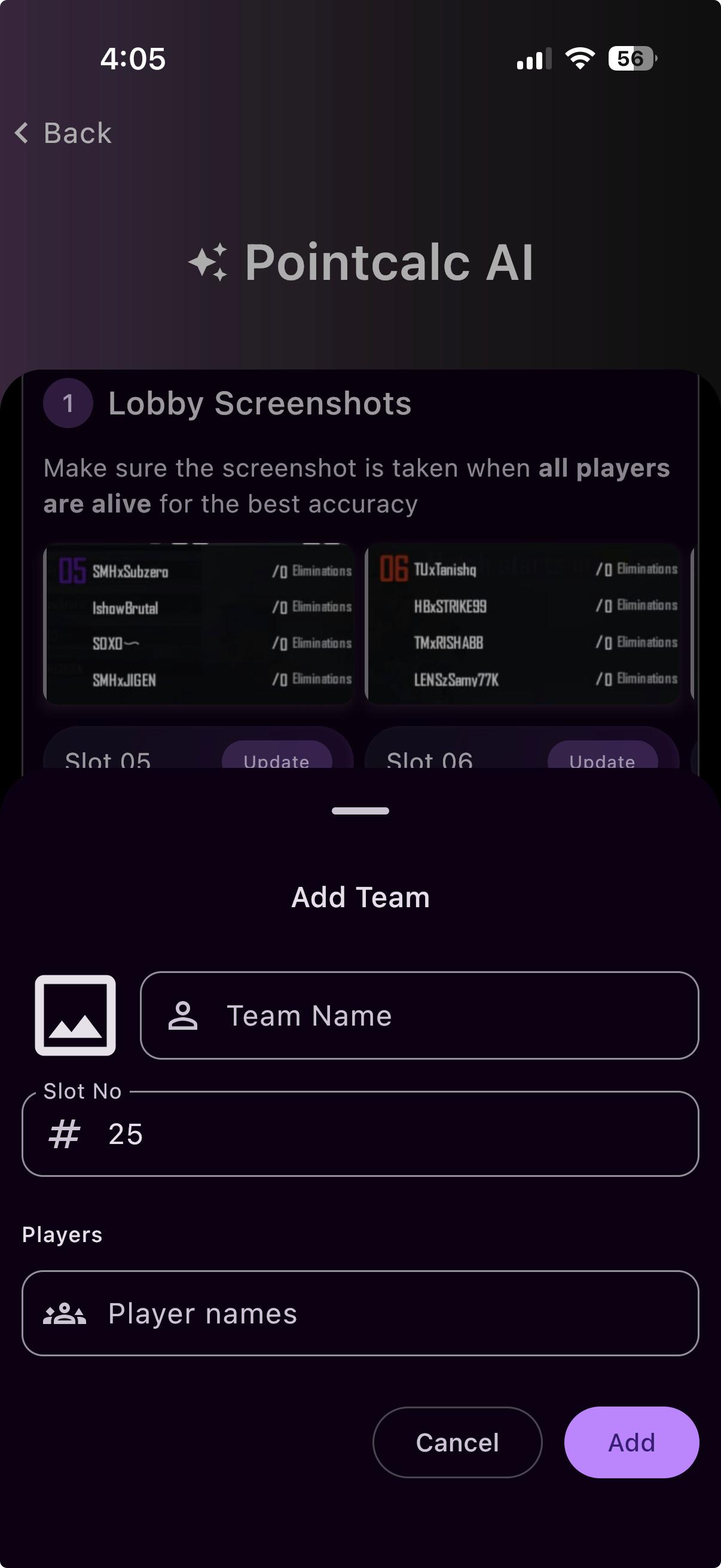
Add the missing team
The form opens with the slot number already filled — name the team (add players if you like) and tap Add. PointCalc matches it and carries on.
Publish your designs
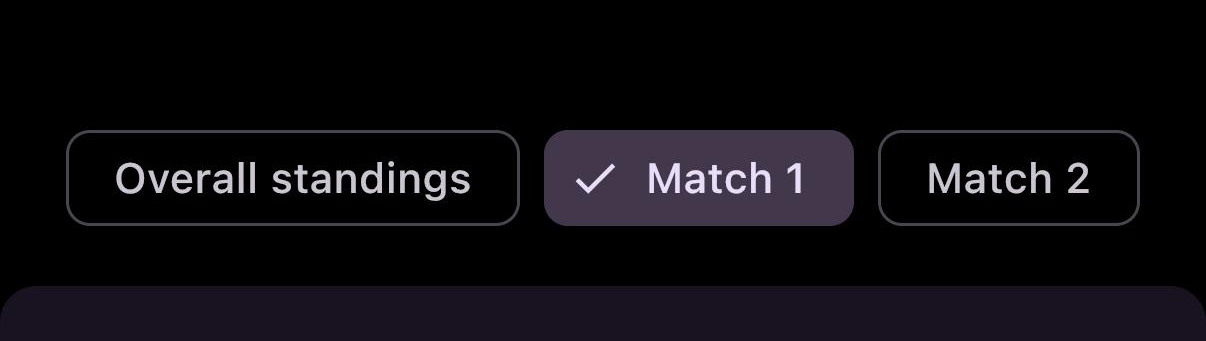
Once a match is calculated, every design updates with the new numbers. Here’s each one — and how to restyle them.
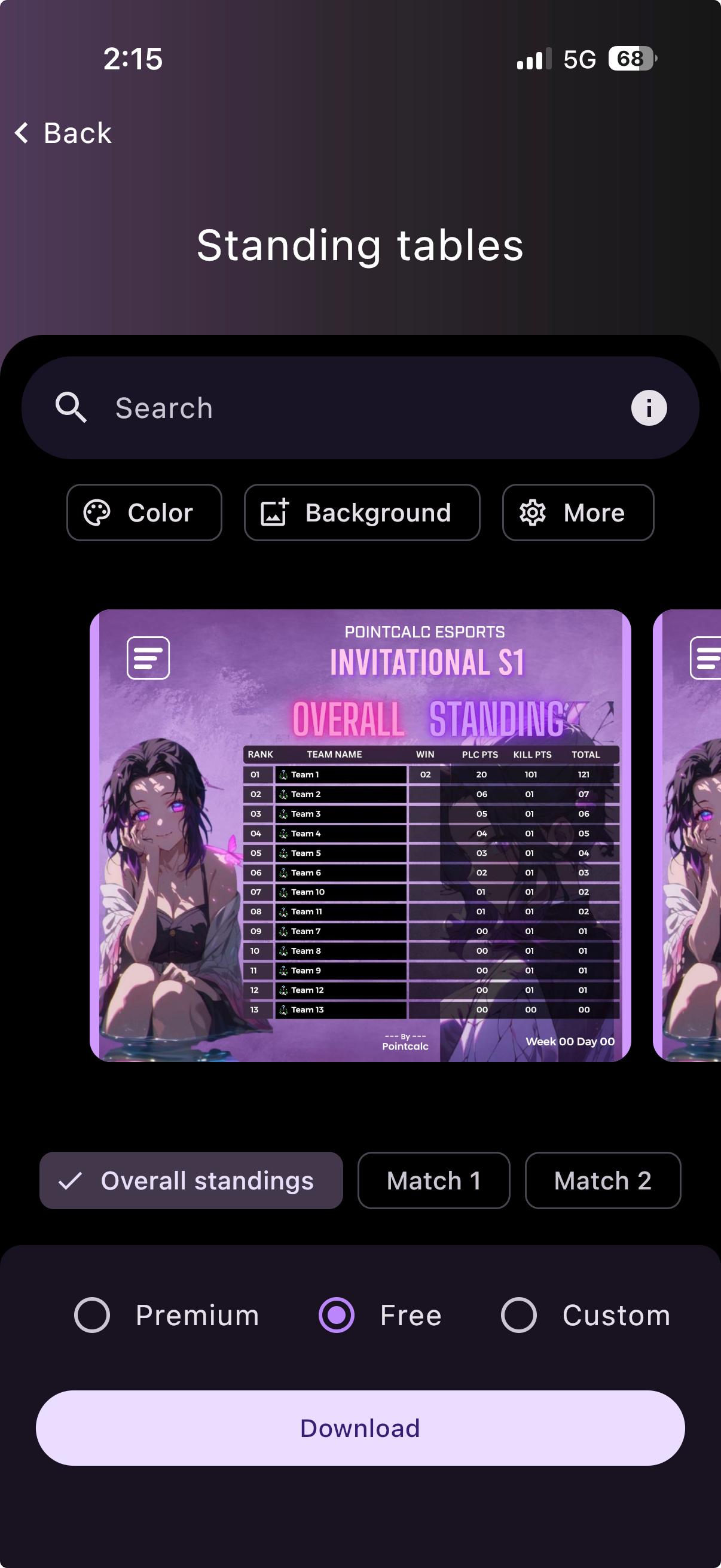
Points table
Your standings. Browse Premium, Free and Custom looks, then Download.
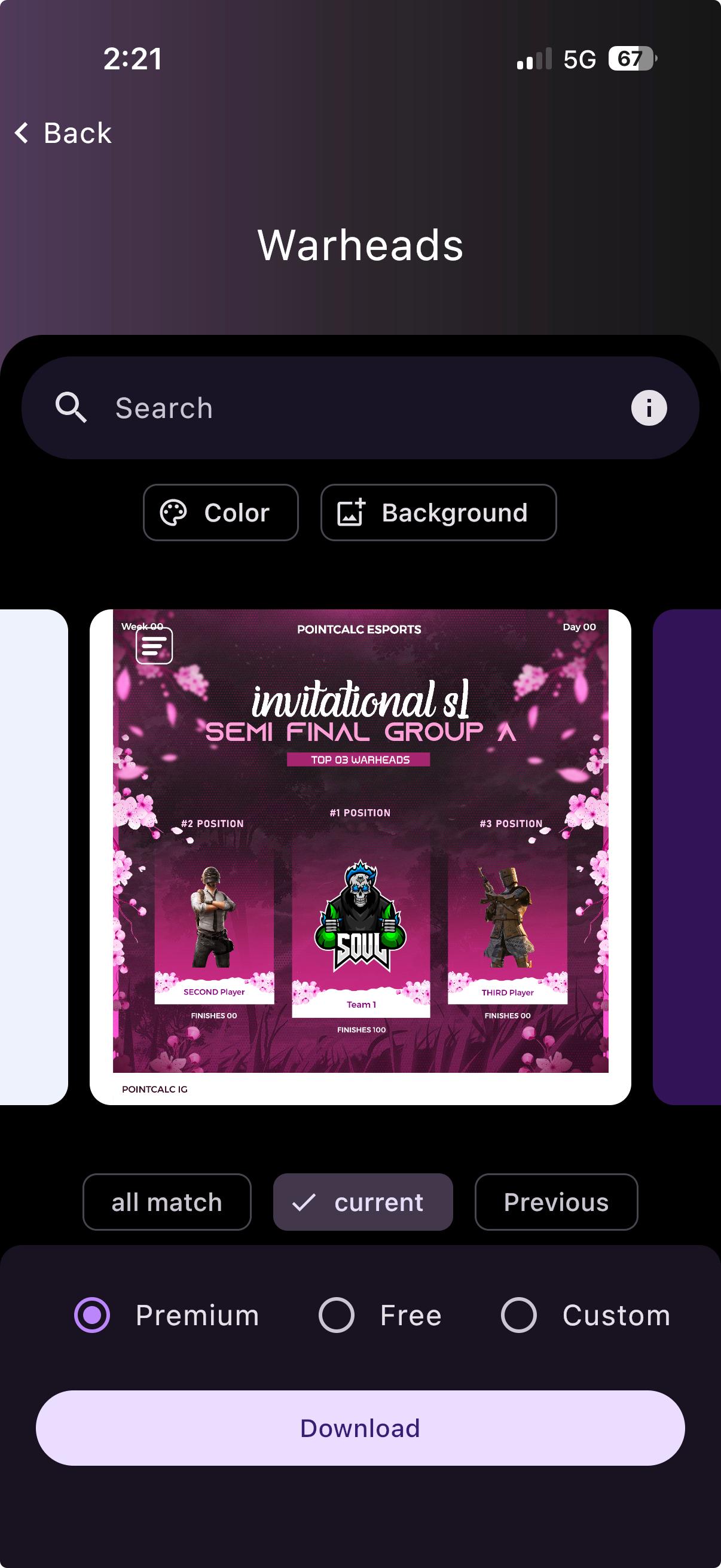
Warheads
The top teams podium — first, second and third.
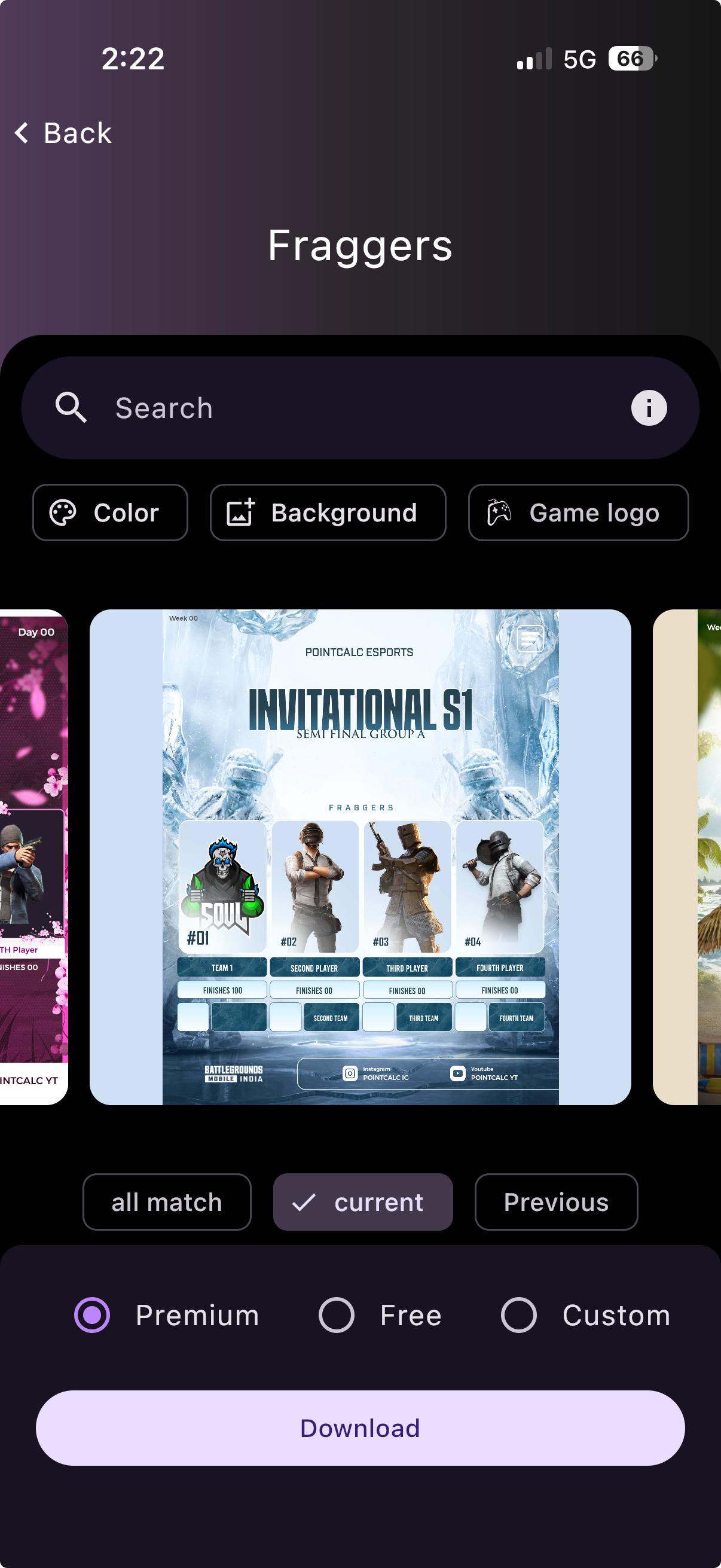
Fraggers
The top individual players by kills.
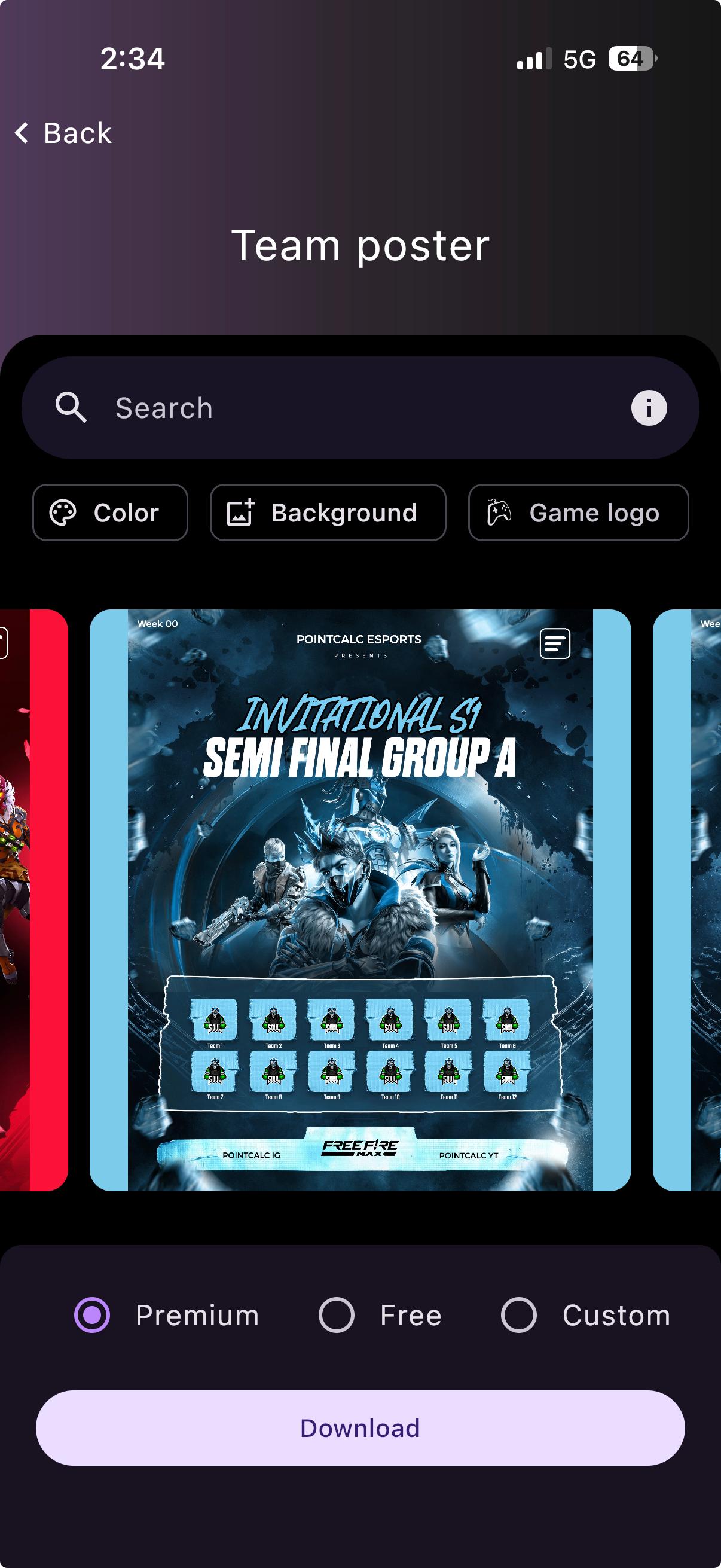
Team poster
Every participating team’s logo and name in one image — great to share before match day.
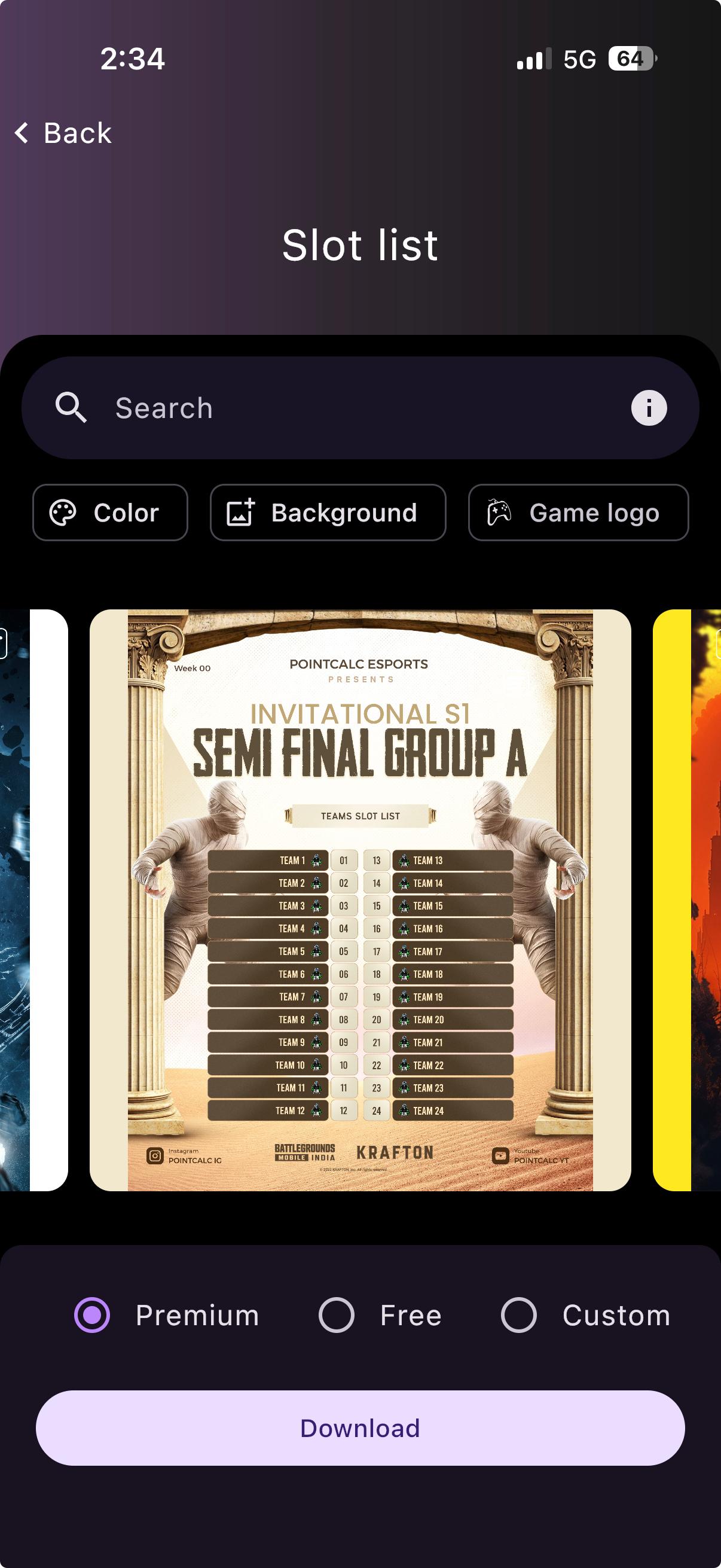
Slot list
Each playing team next to its slot number.
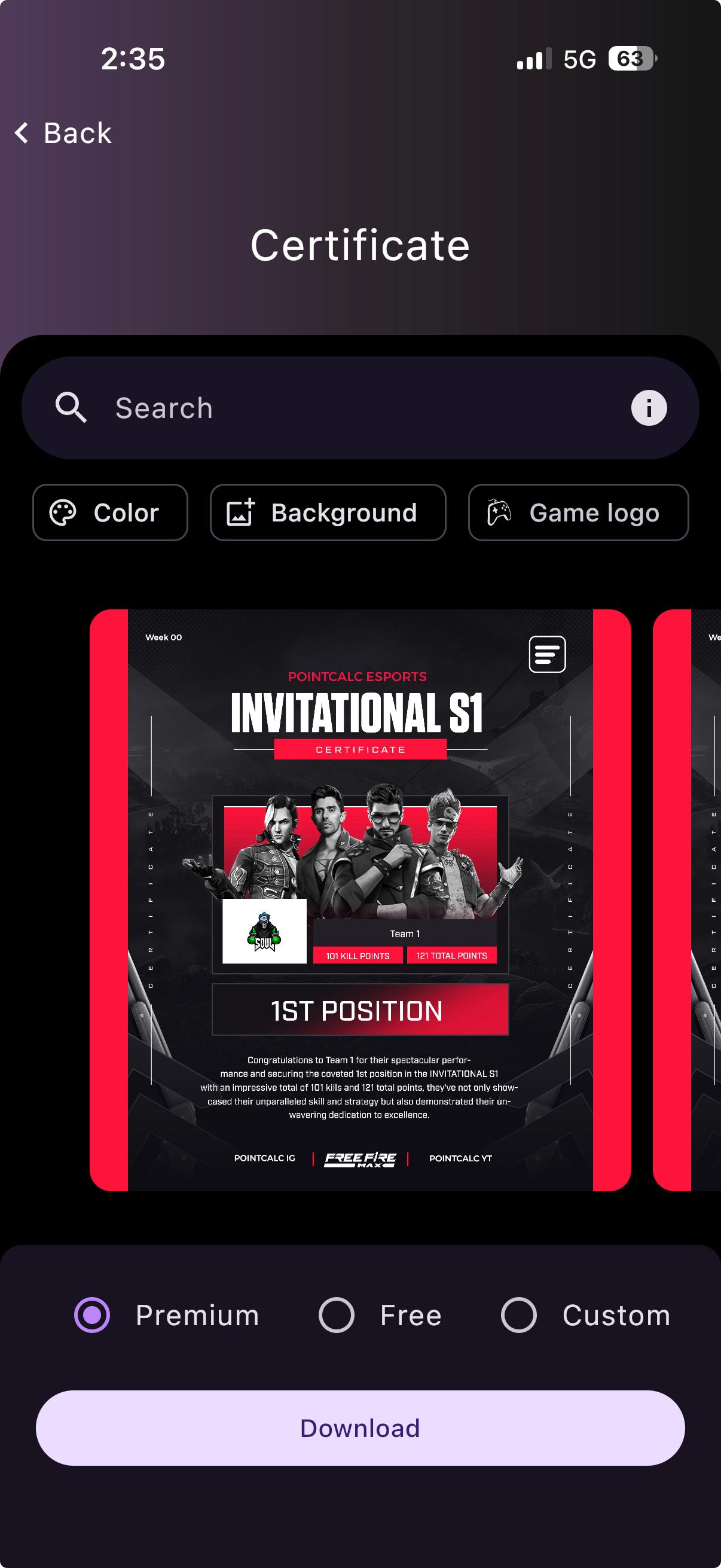
Certificate
A winner’s certificate for the table-toppers — usually the top 3 or top 5, depending on the design.
Restyle any design
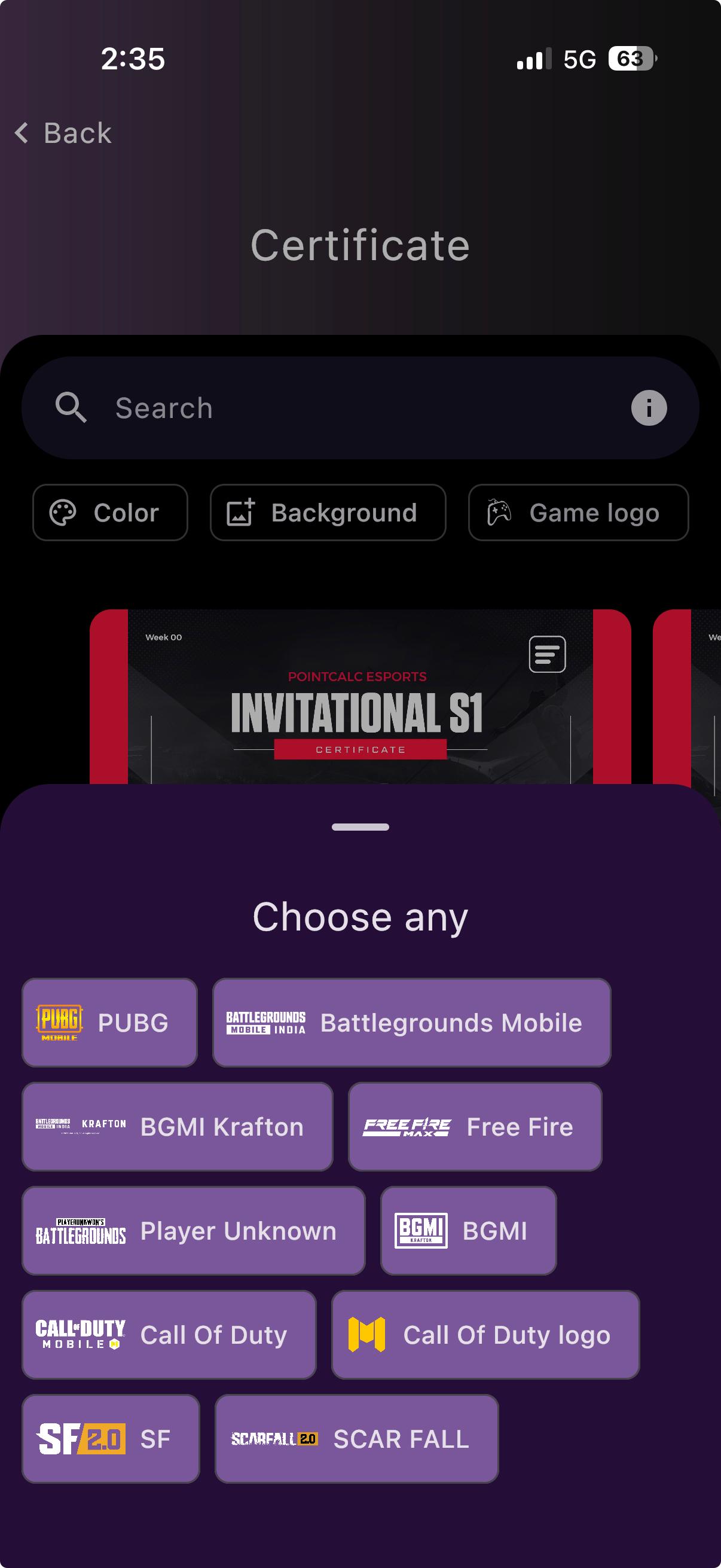
Colour, background & game logo
Every design carries the same quick controls along the top. “Game logo” lets you swap the game branding from a “Choose any” list.
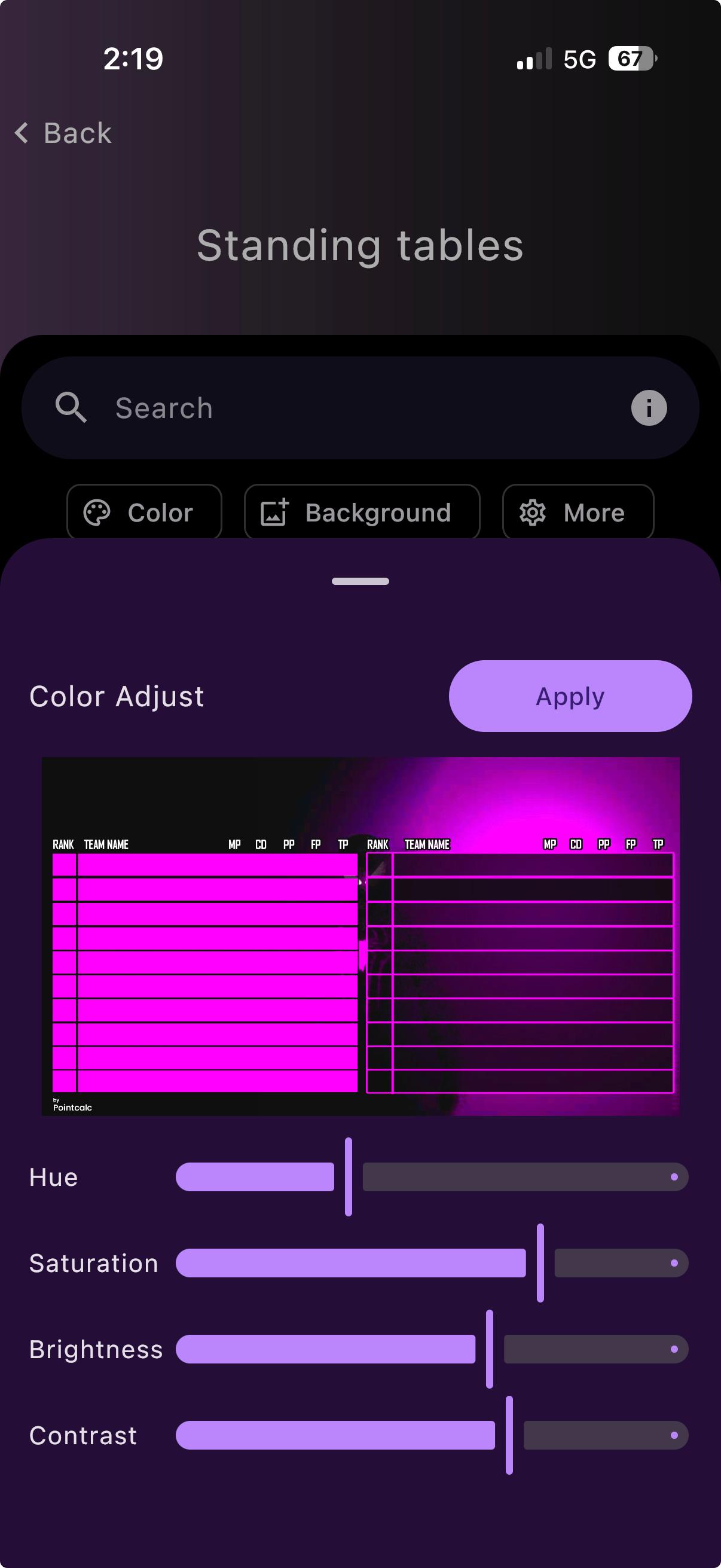
Recolour it
Slide Hue, Saturation, Brightness and Contrast until it fits your brand, then Apply.
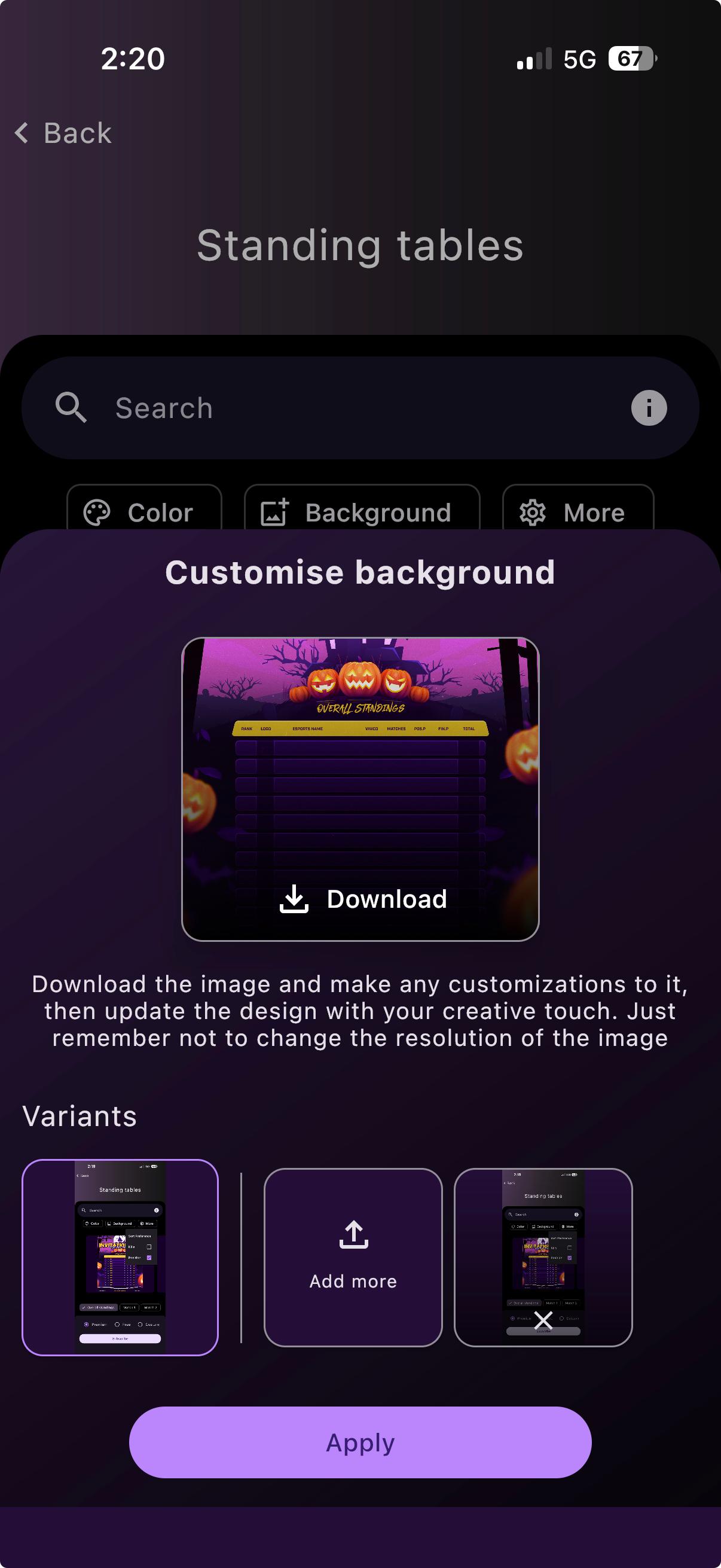
Change the background
Download the base image, edit it however you like, and upload it back as a variant. Just keep the same size so everything still lines up.
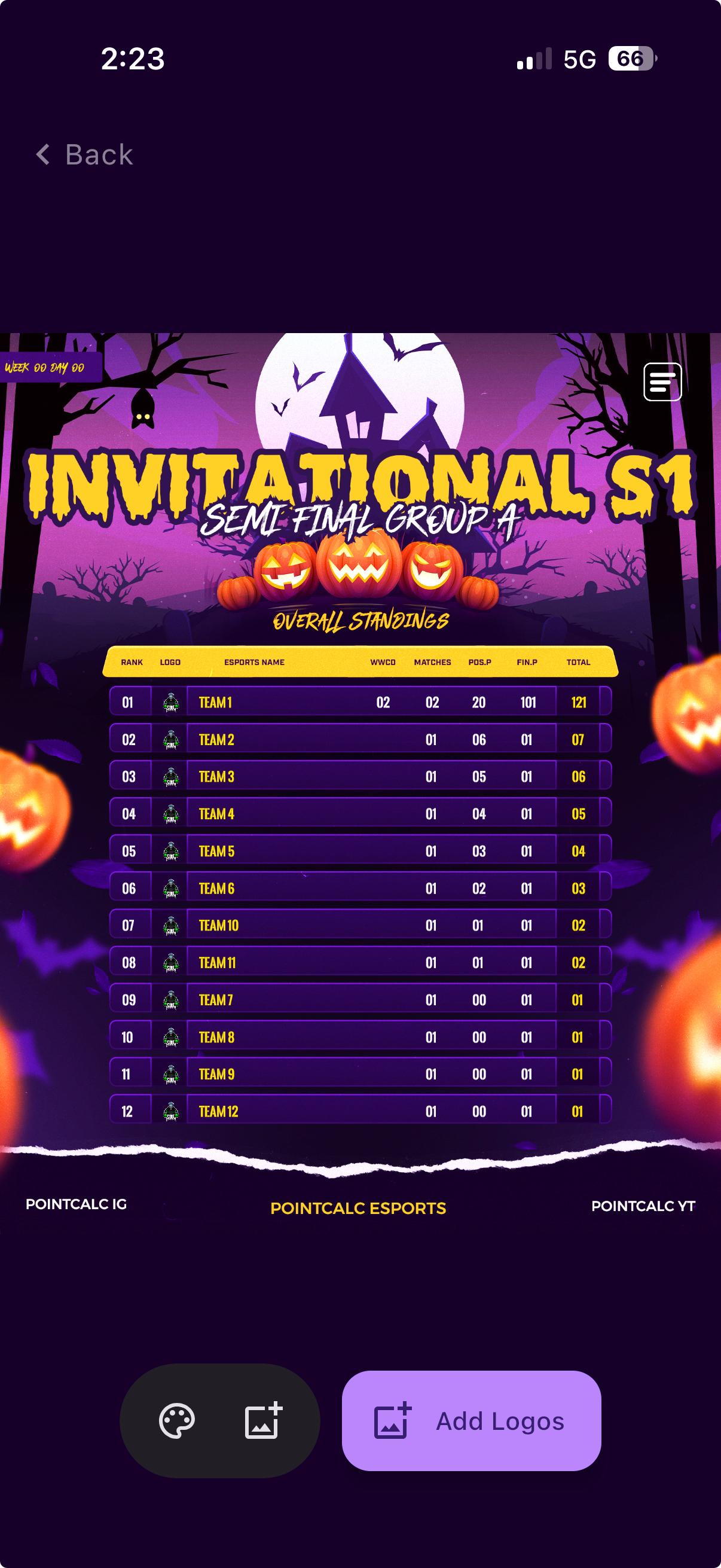
Zoom in & add logos
Double-tap or pinch any design to zoom in. You can also add as many images on top as you want with “Add Logos”.
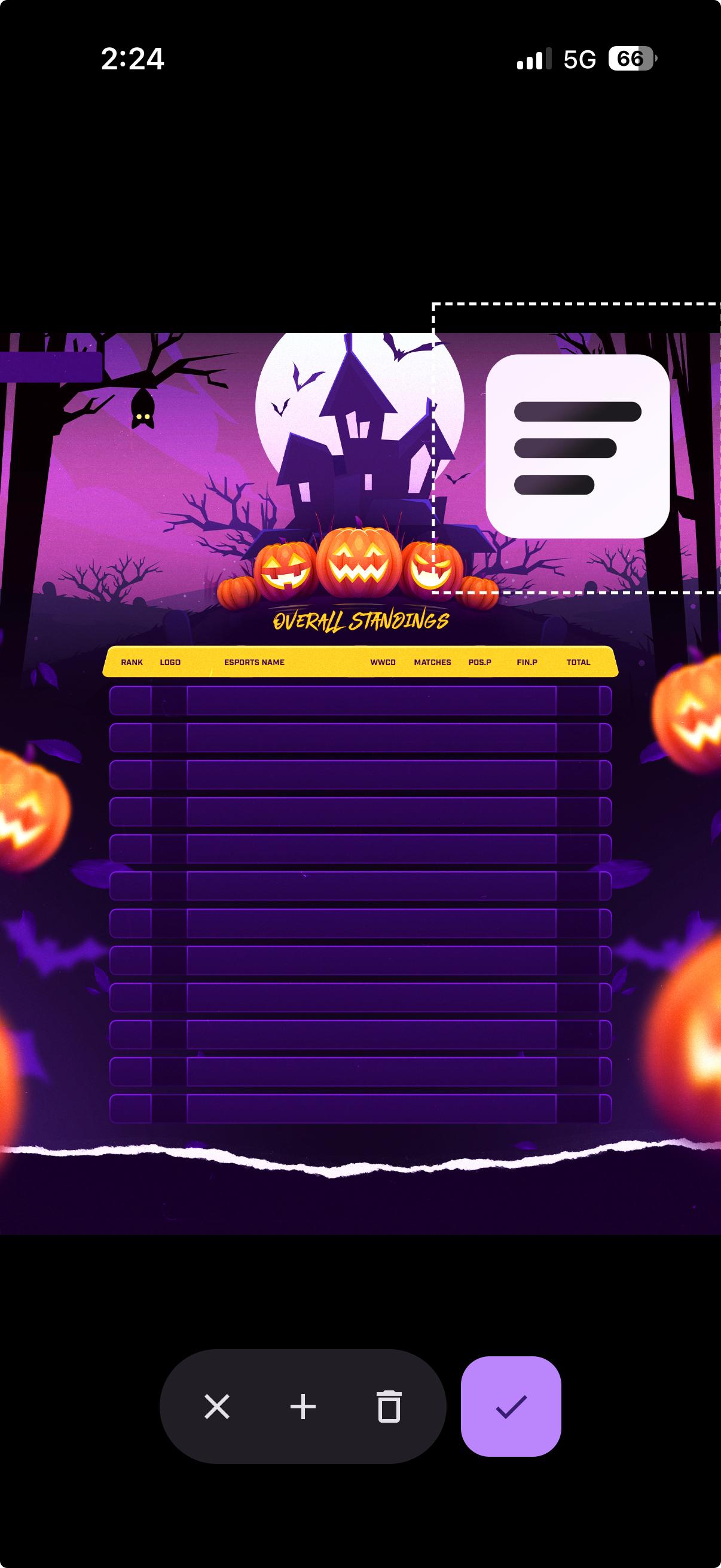
Place your logos
Drag each logo where you want it on the design, then tick to confirm.
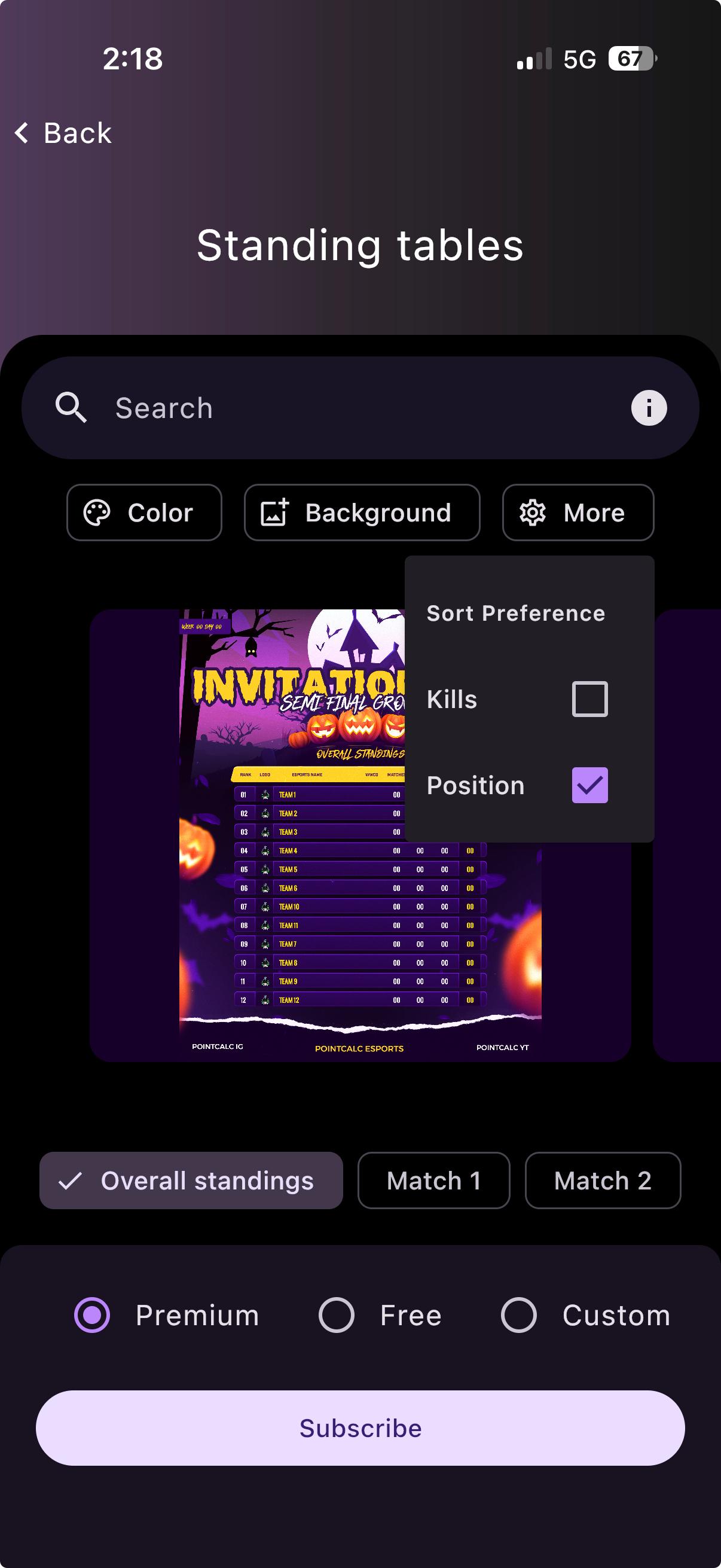
Break ties — by kills or by position
When two teams are level on points, decide whether their kills or their placement settles who ranks higher.
More options
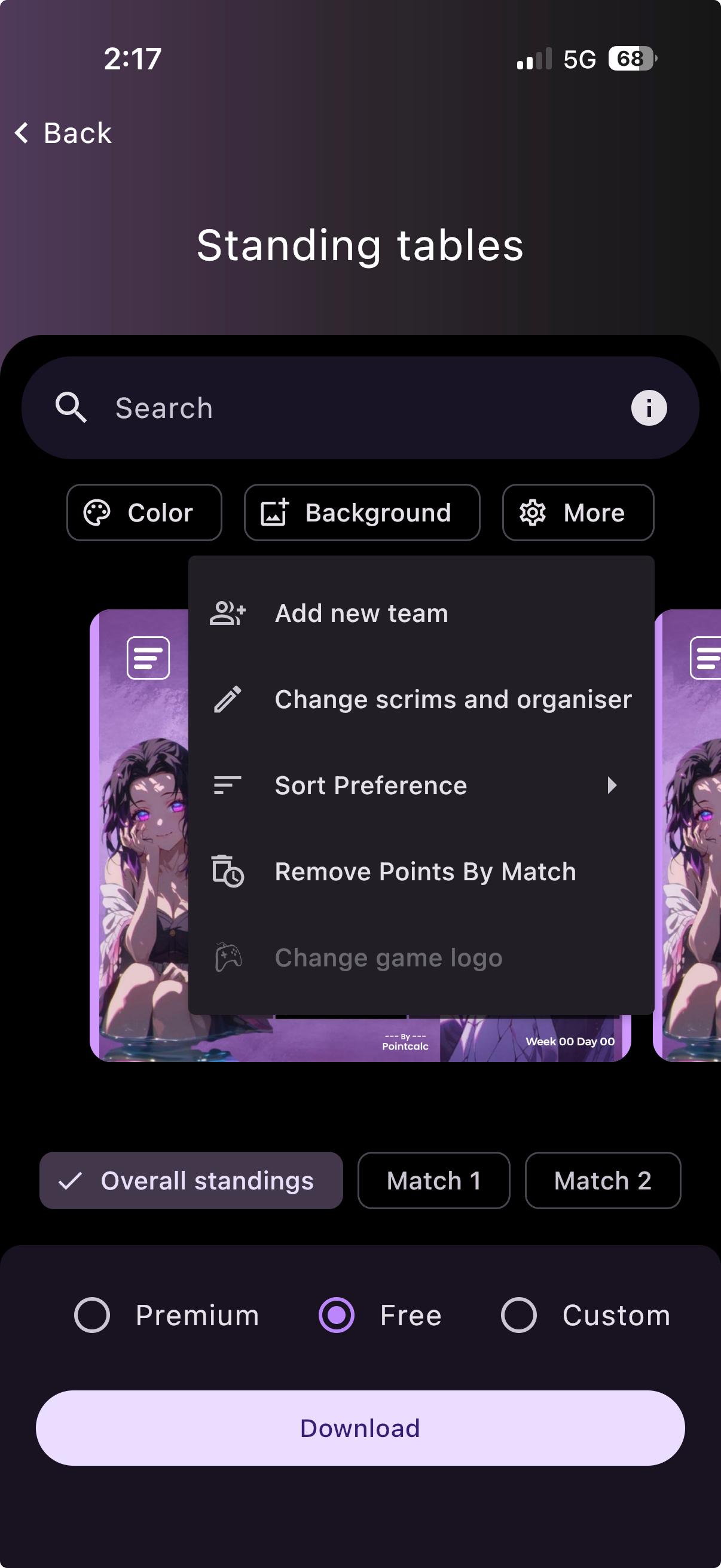
A few extras live here — add a team, edit the event details, set the sort preference, remove a match’s points, or change the game logo.
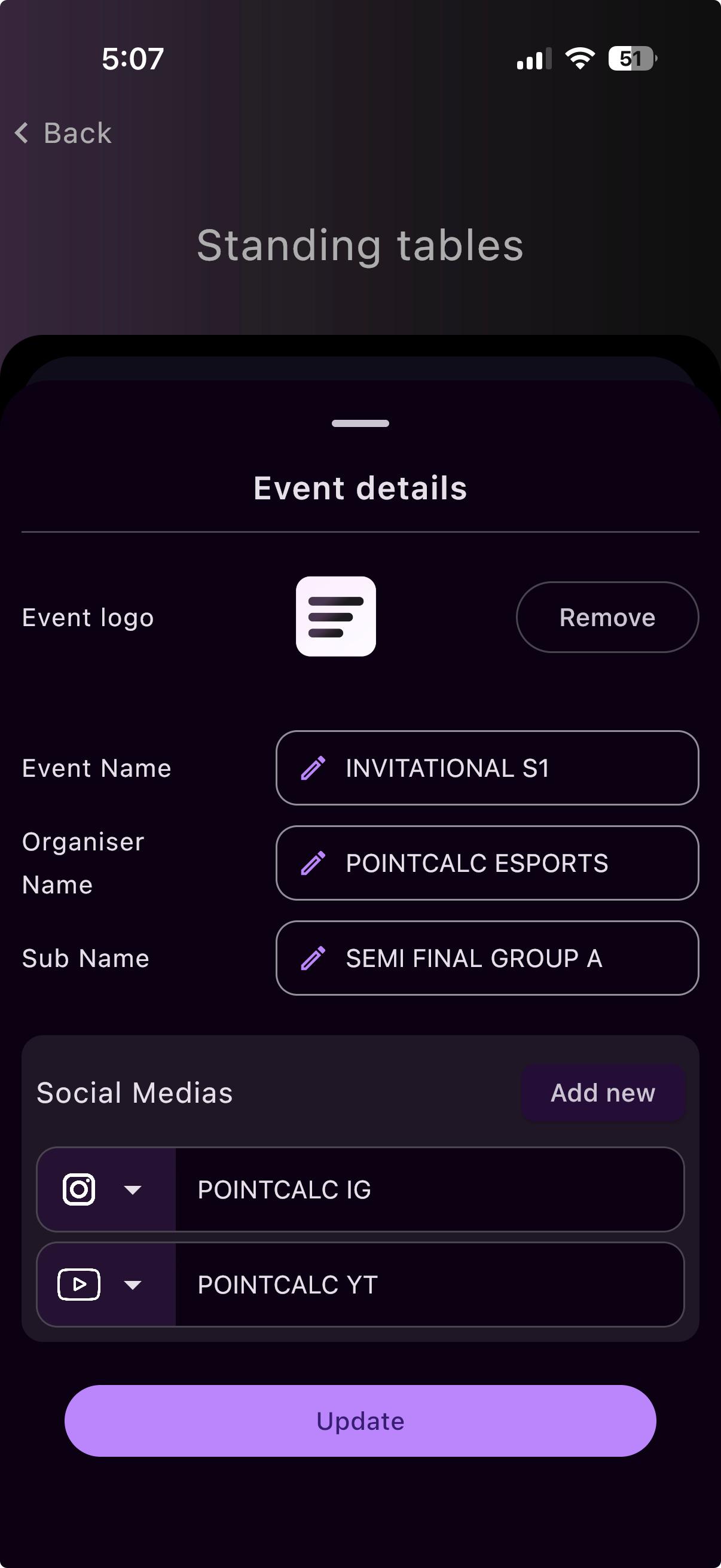
Edit your event details
Set the event logo, event name, organiser name, sub-name and your social handles — these show on every design.
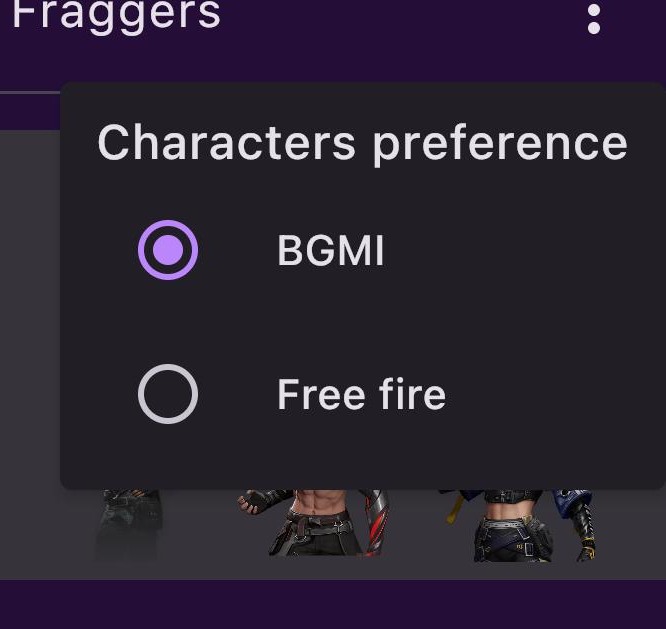
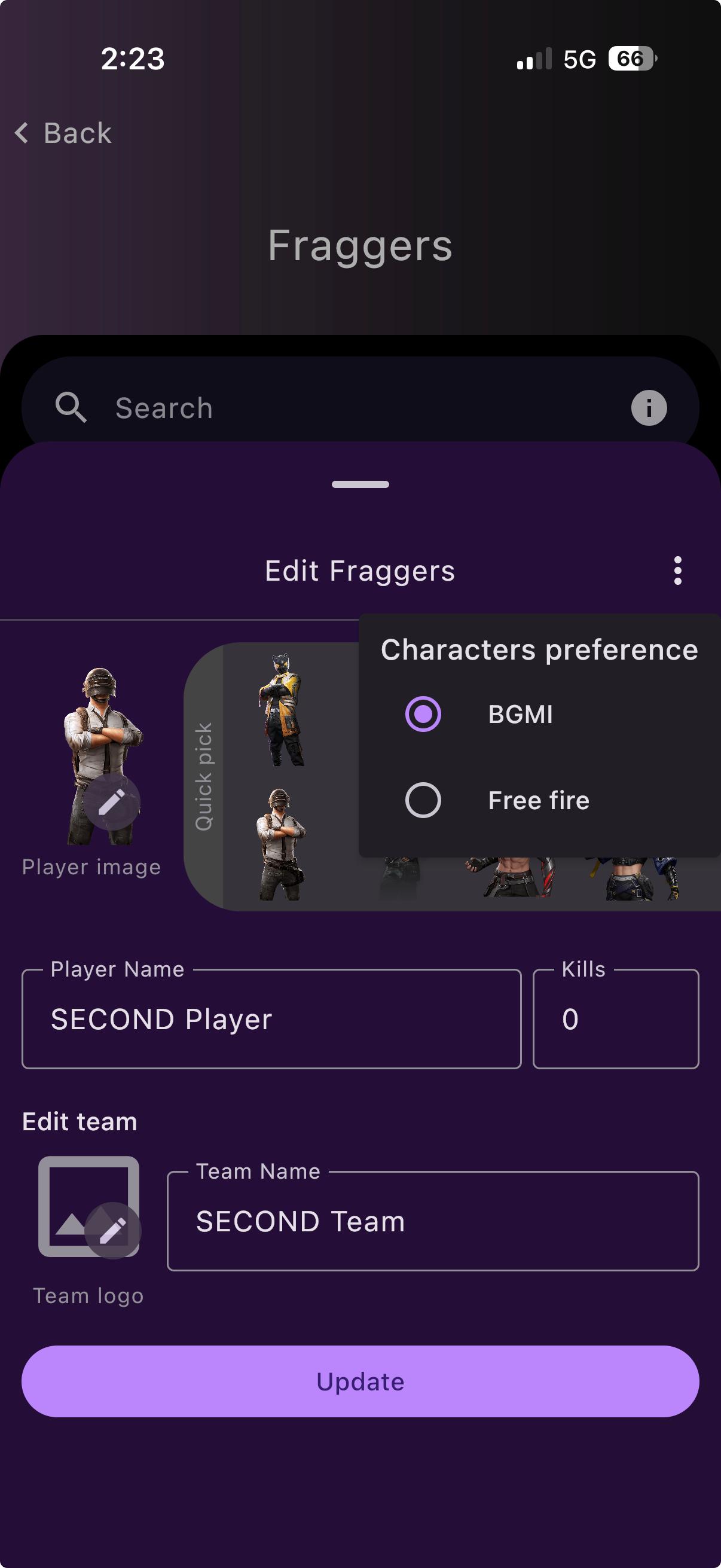
Switch character art (Fraggers)
Fraggers uses PUBG/BGMI characters by default. Switch to Free Fire here and it’ll stay that way.
Quick edits on a design
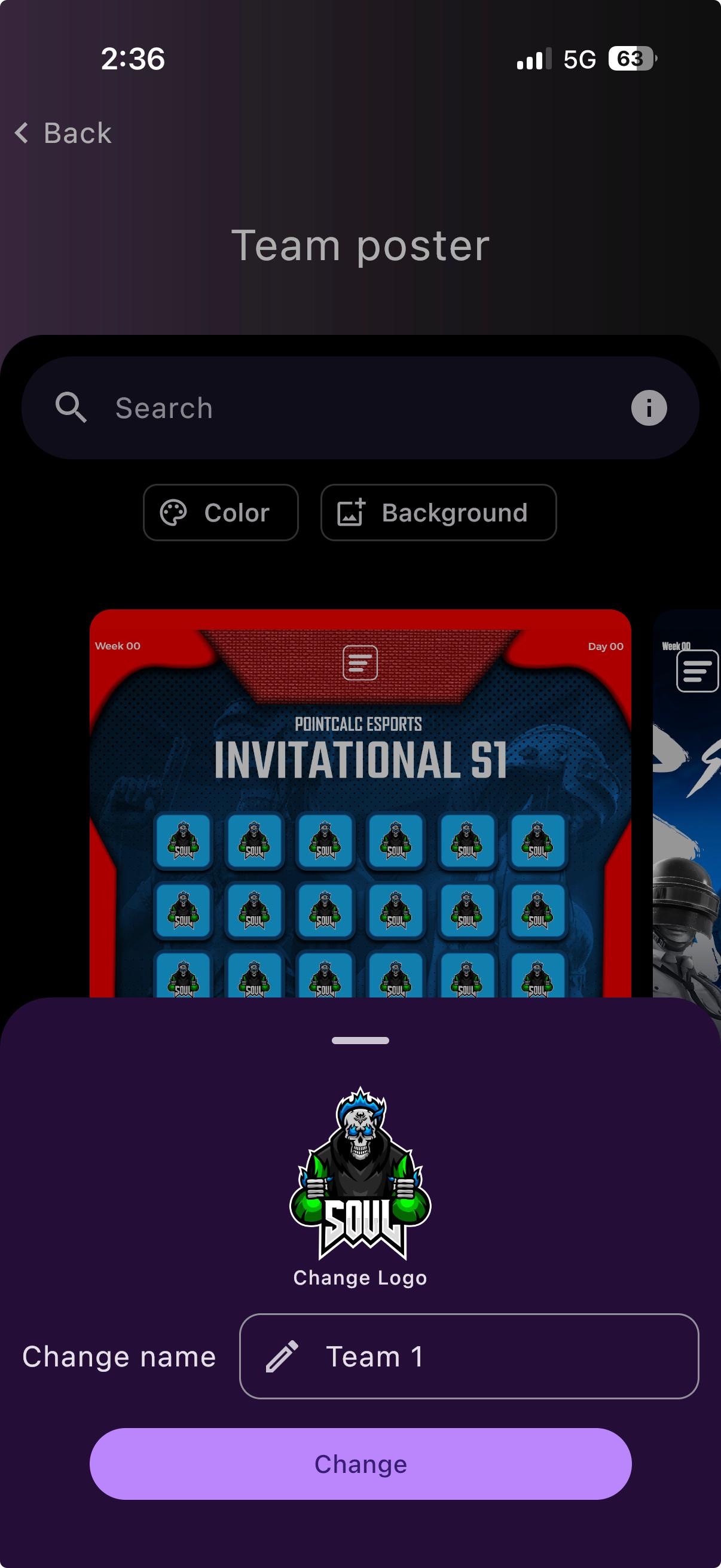
Rename or relogo, just for this graphic
Inside a design you can rename a team or swap its logo for that image only.
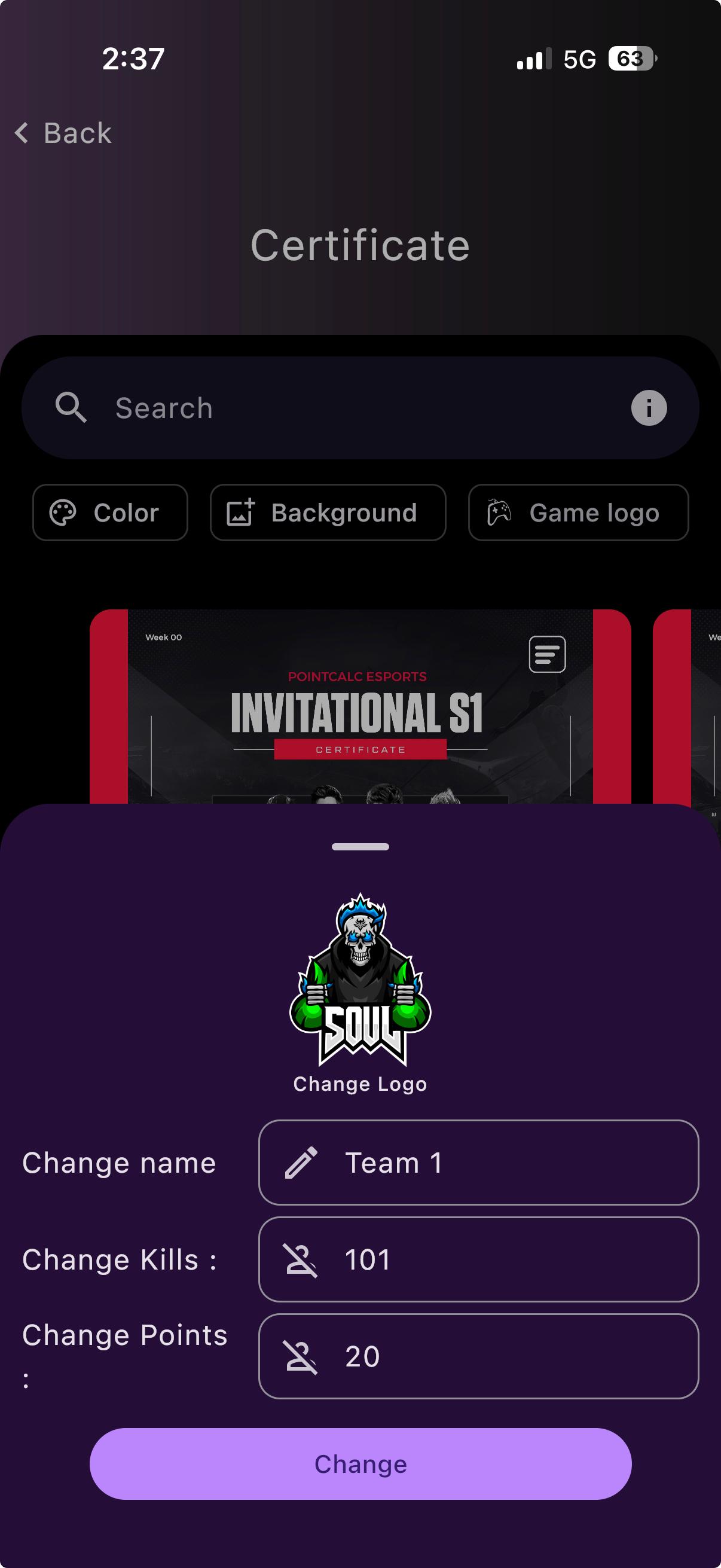
…or tweak a certificate’s numbers
On the certificate you can also adjust the shown kills and points, again only for that graphic.
Edit an existing tournament
Need to fix something after the fact? Everything is editable.
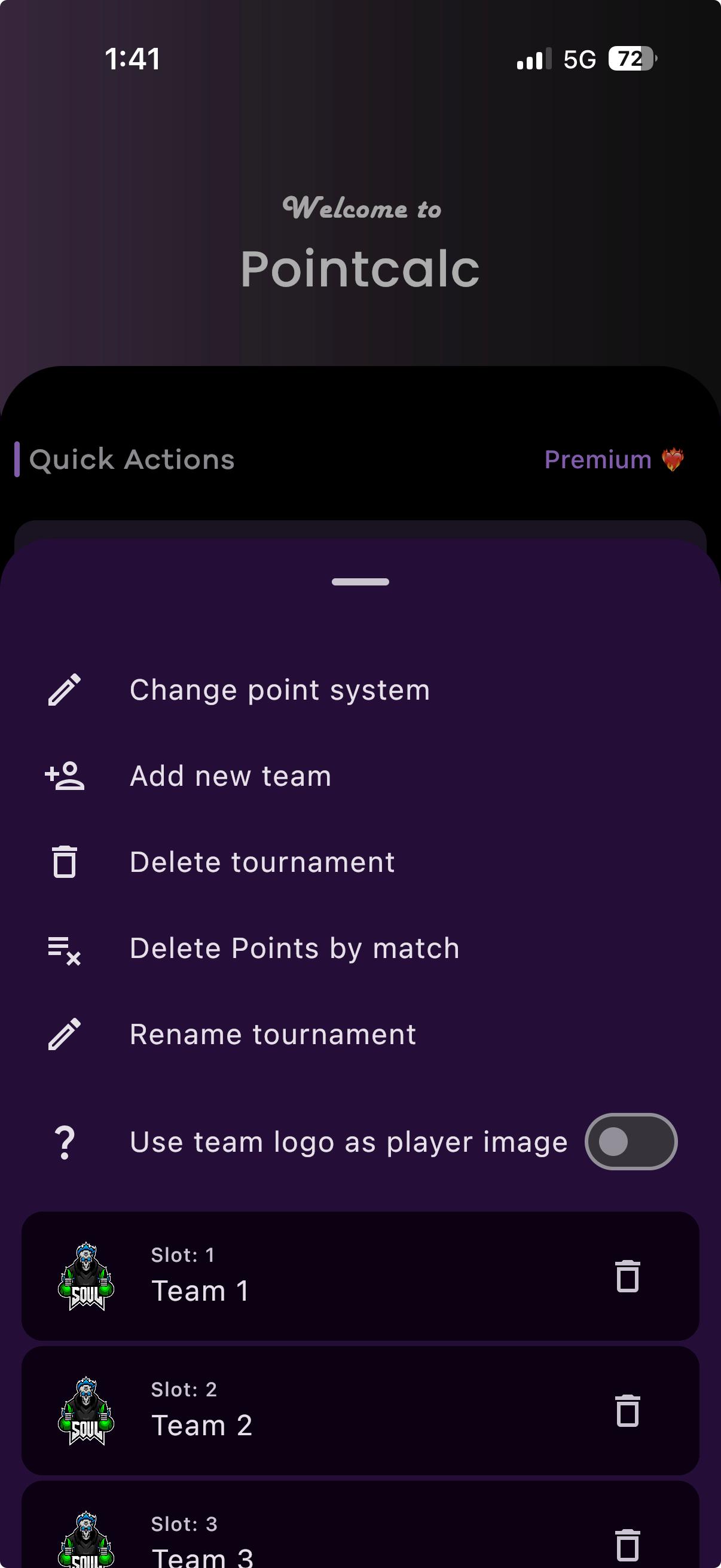
The Edit menu
From a tournament you can change the point system, add a team, rename it, delete a match’s points, or delete the whole thing.
Edit a team — the real edit
This is the full team editor: change its name, logo and slot, add bonus or penalty points, and edit any match.
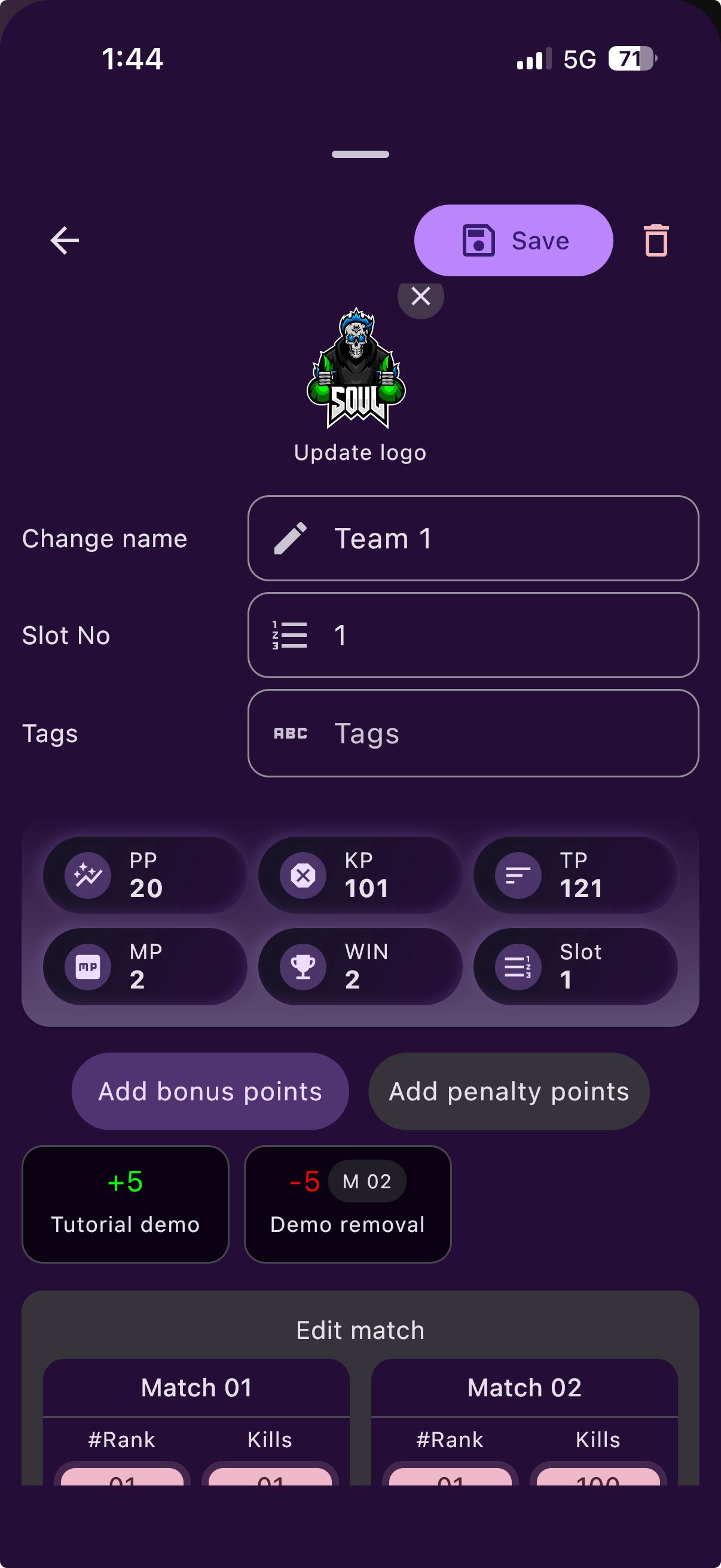
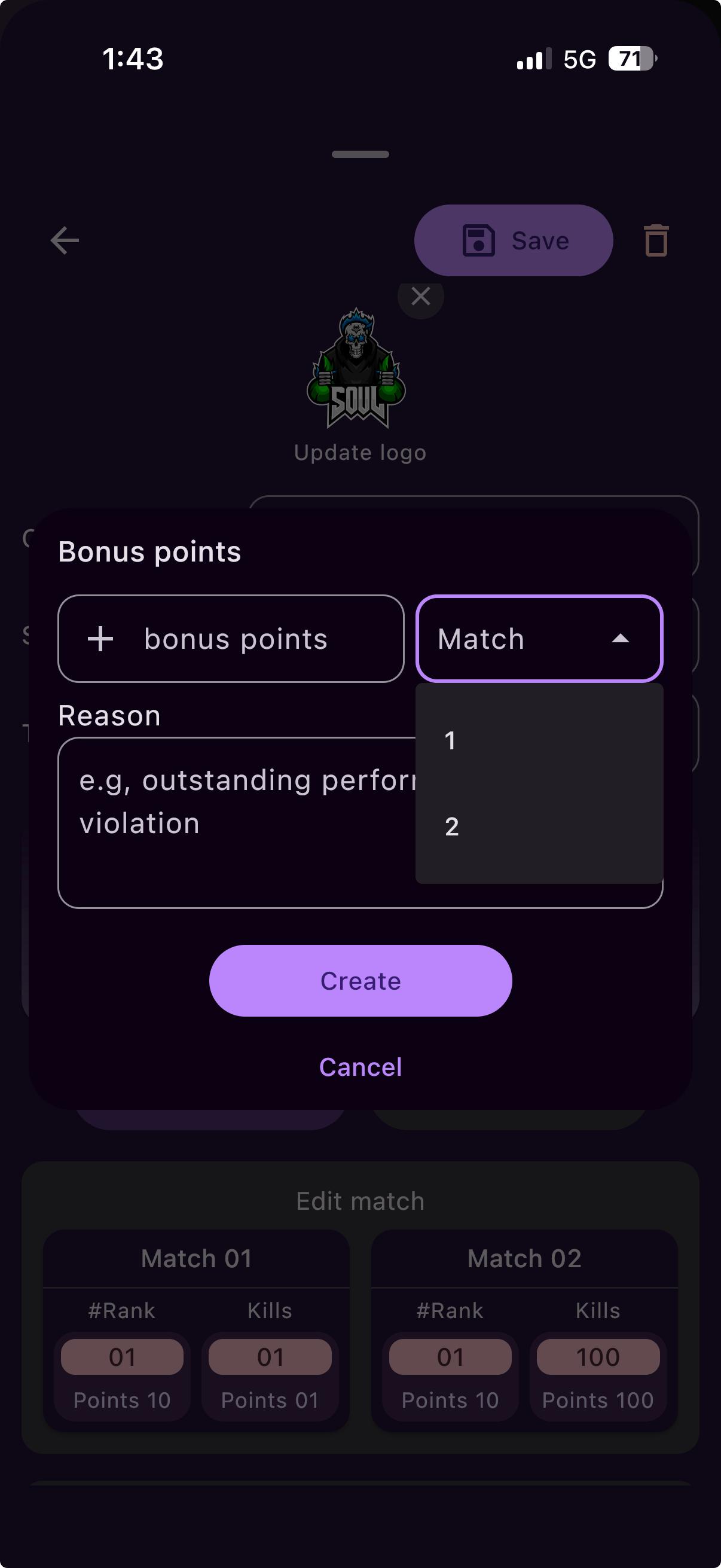
Bonus & penalty points
Reward or dock a team for a specific match, with a reason. You do this from the team editor — not while calculating.
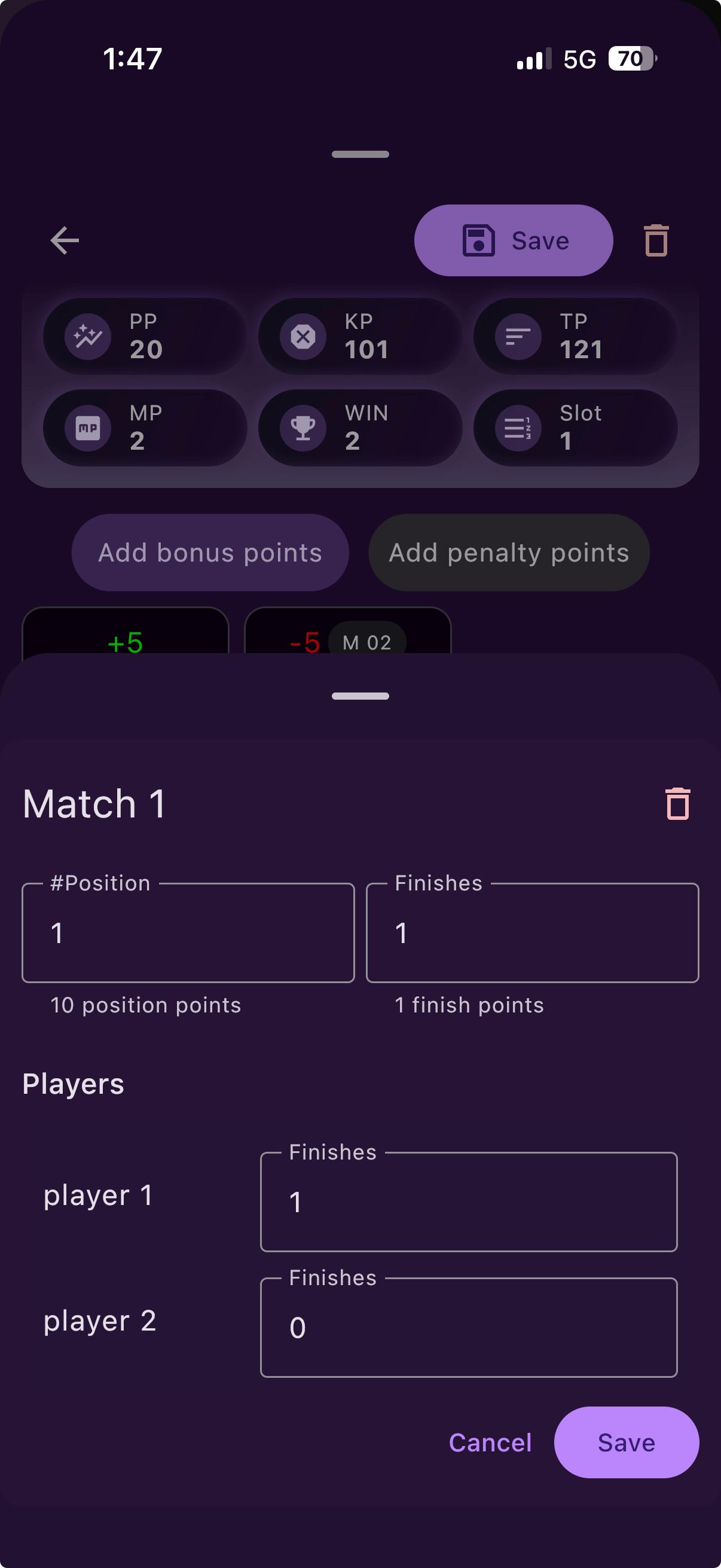
Edit a single match
Open any past match to correct its placement, kills and each player’s finishes.
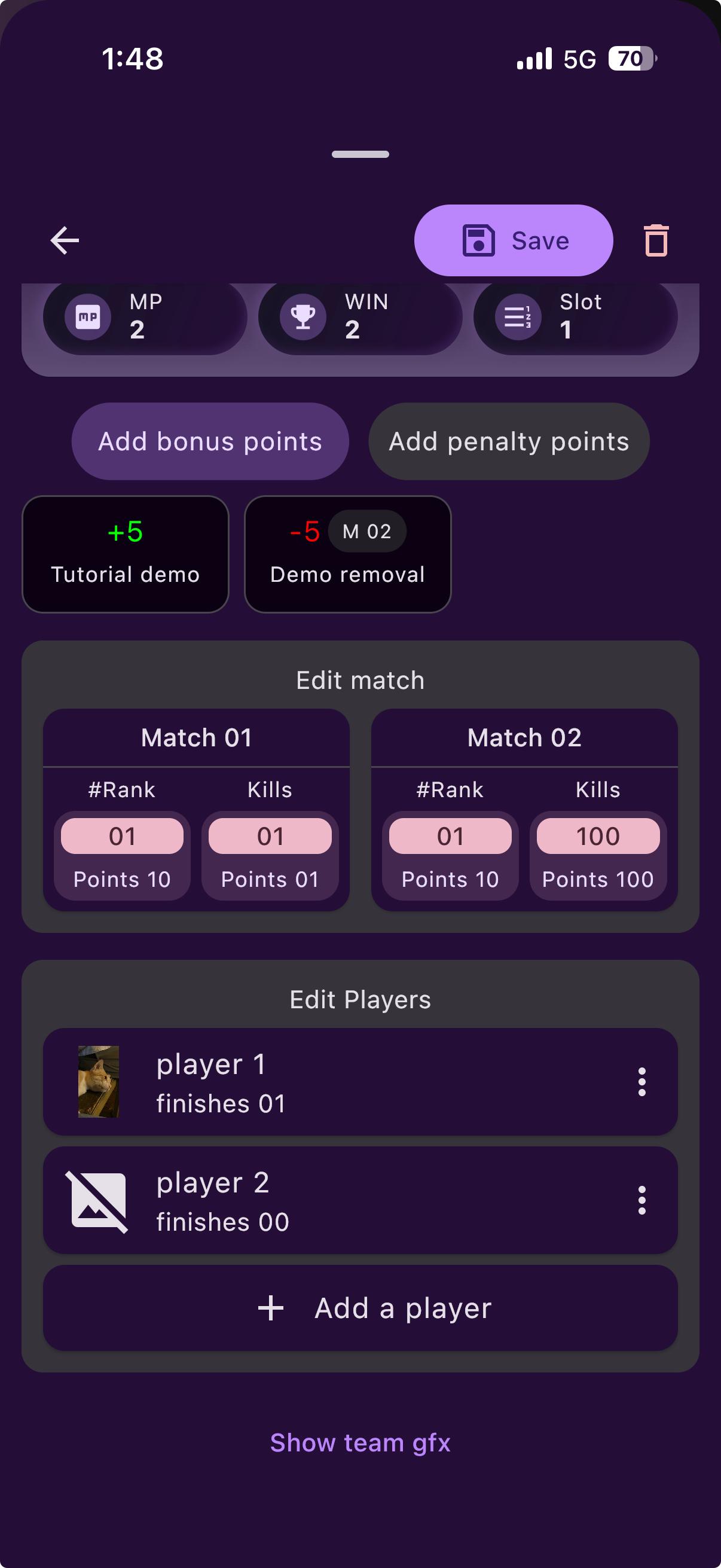
Edit the players
See every match for the team, and add or change its players.
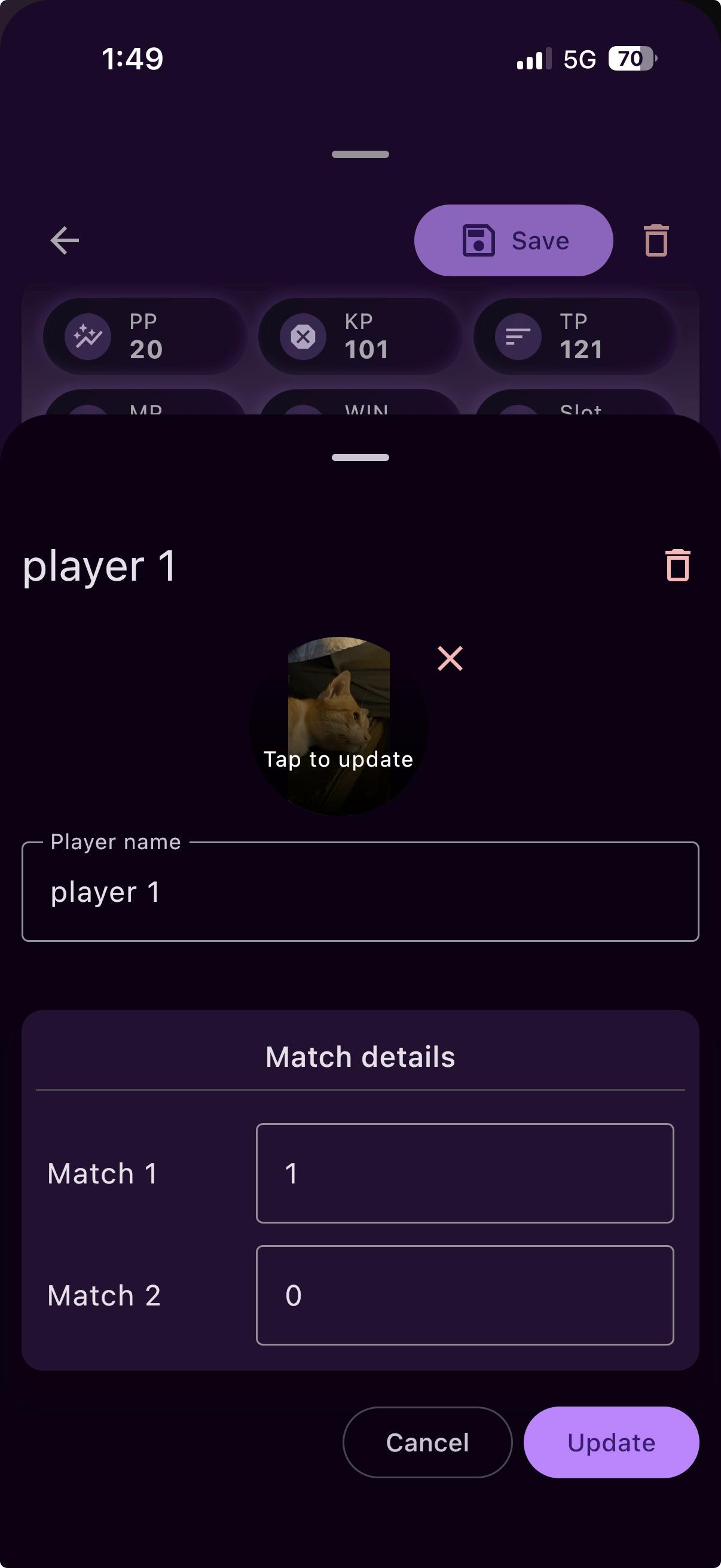
Edit one player
Change a player’s name, photo and their kills per match.
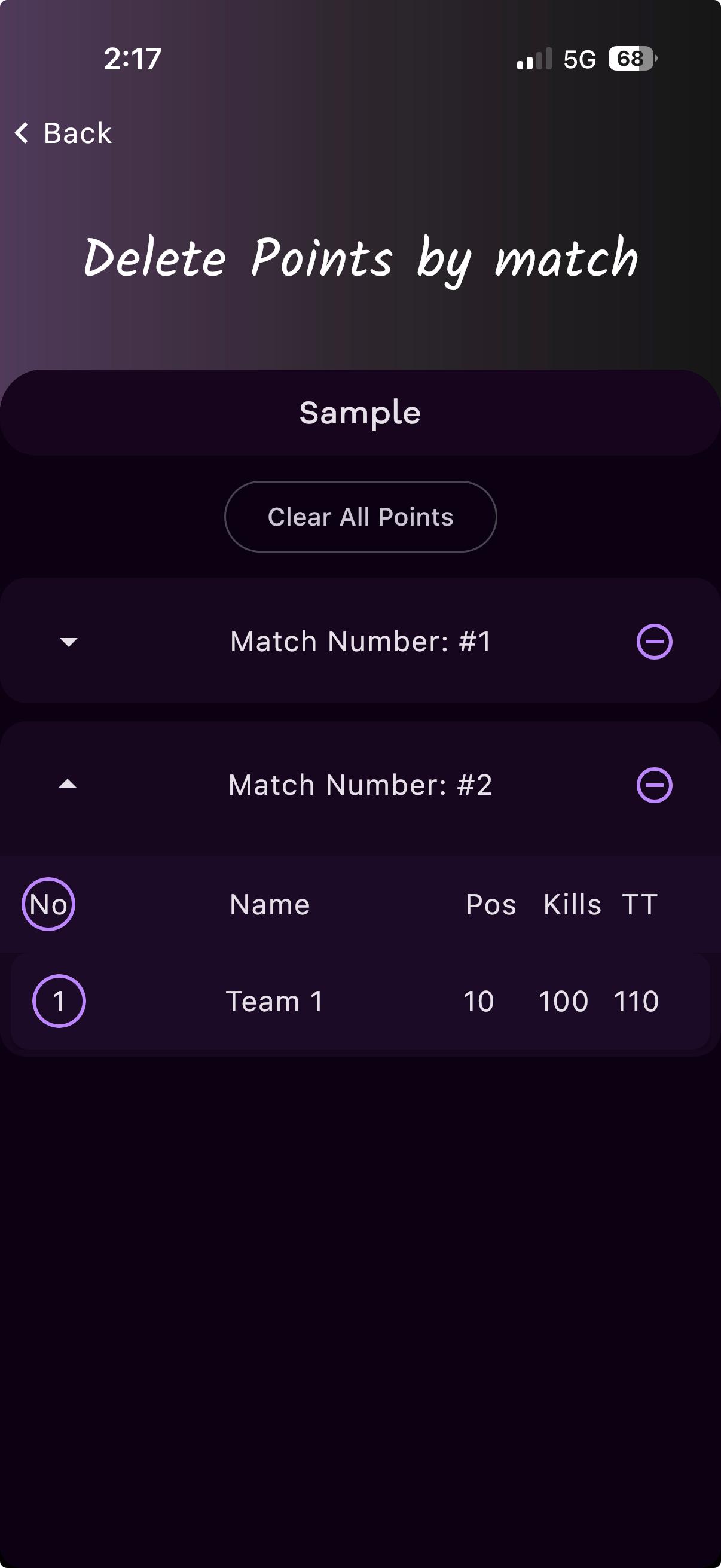
Remove a match’s points
Take out one match’s points — or clear them all — without deleting the tournament.
Share & import
Move tournaments and teams between people and devices.
More actions
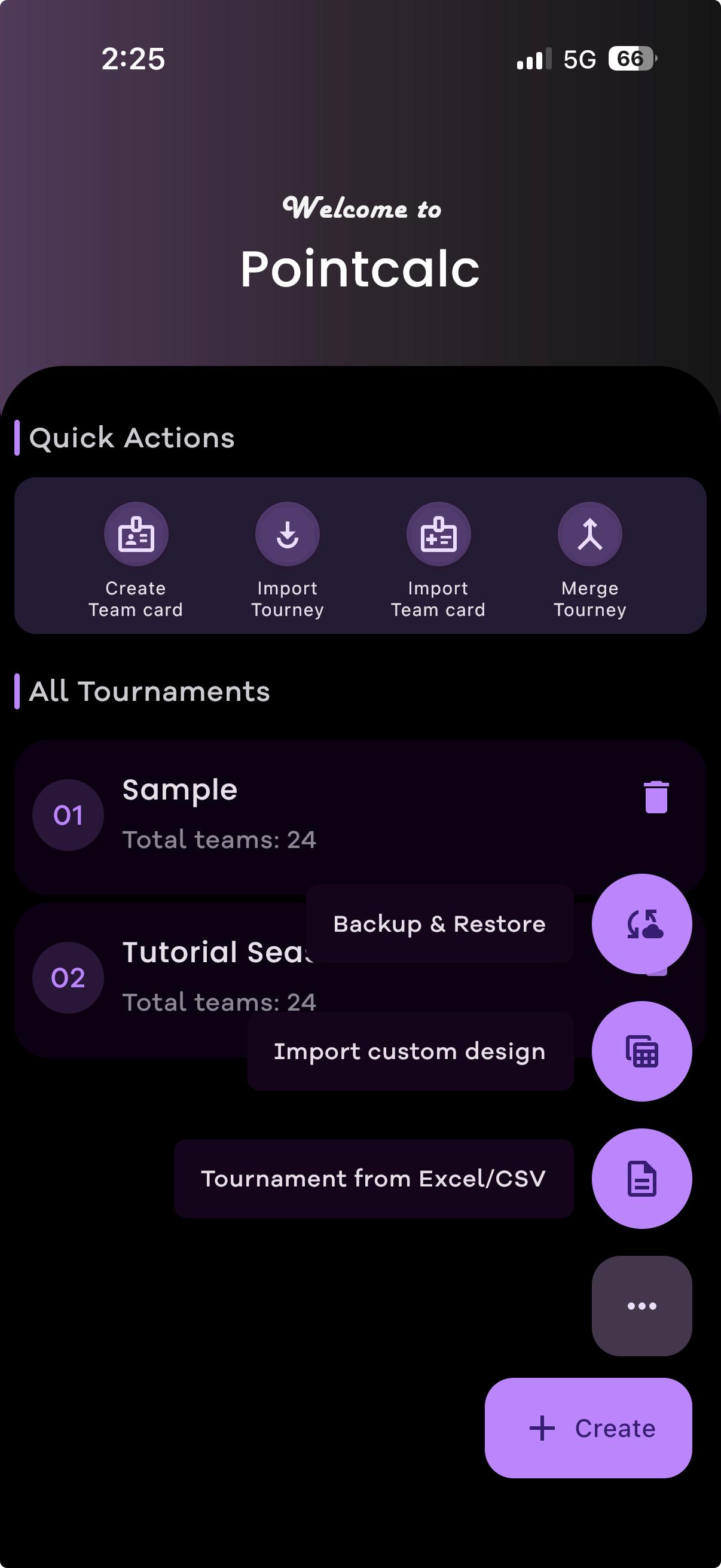
The “…” button opens backup & restore, importing a custom design, and building a tournament from a spreadsheet.
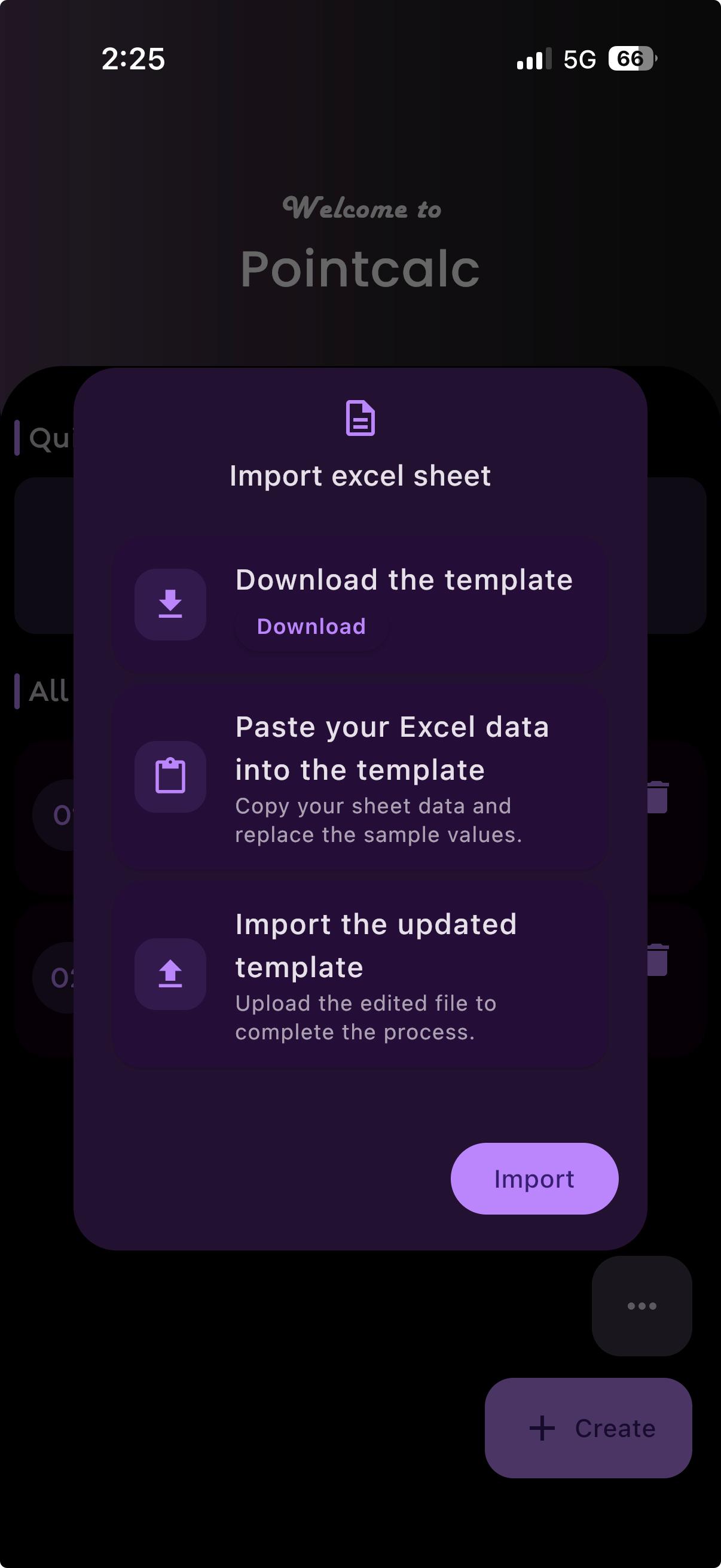
Build from a spreadsheet
Download the template, paste your data in, and import it back — handy for big team lists.
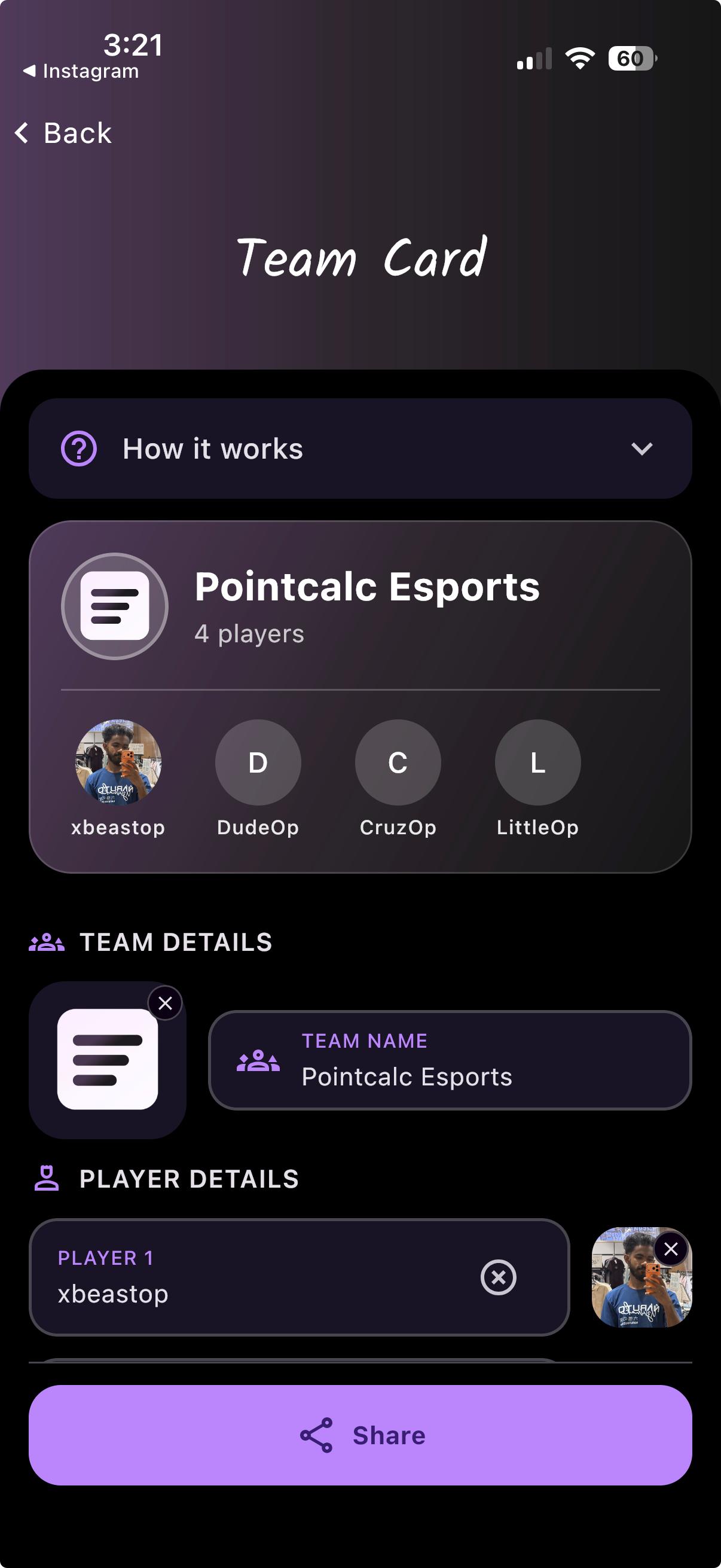
Team Cards — like a sign-up form
A Team Card is PointCalc’s version of a registration form. A player fills in their team and roster in the app and sends you the file on WhatsApp or Discord; you open it in PointCalc and import it. It’s also a neat way to split set-up work across your organisers.
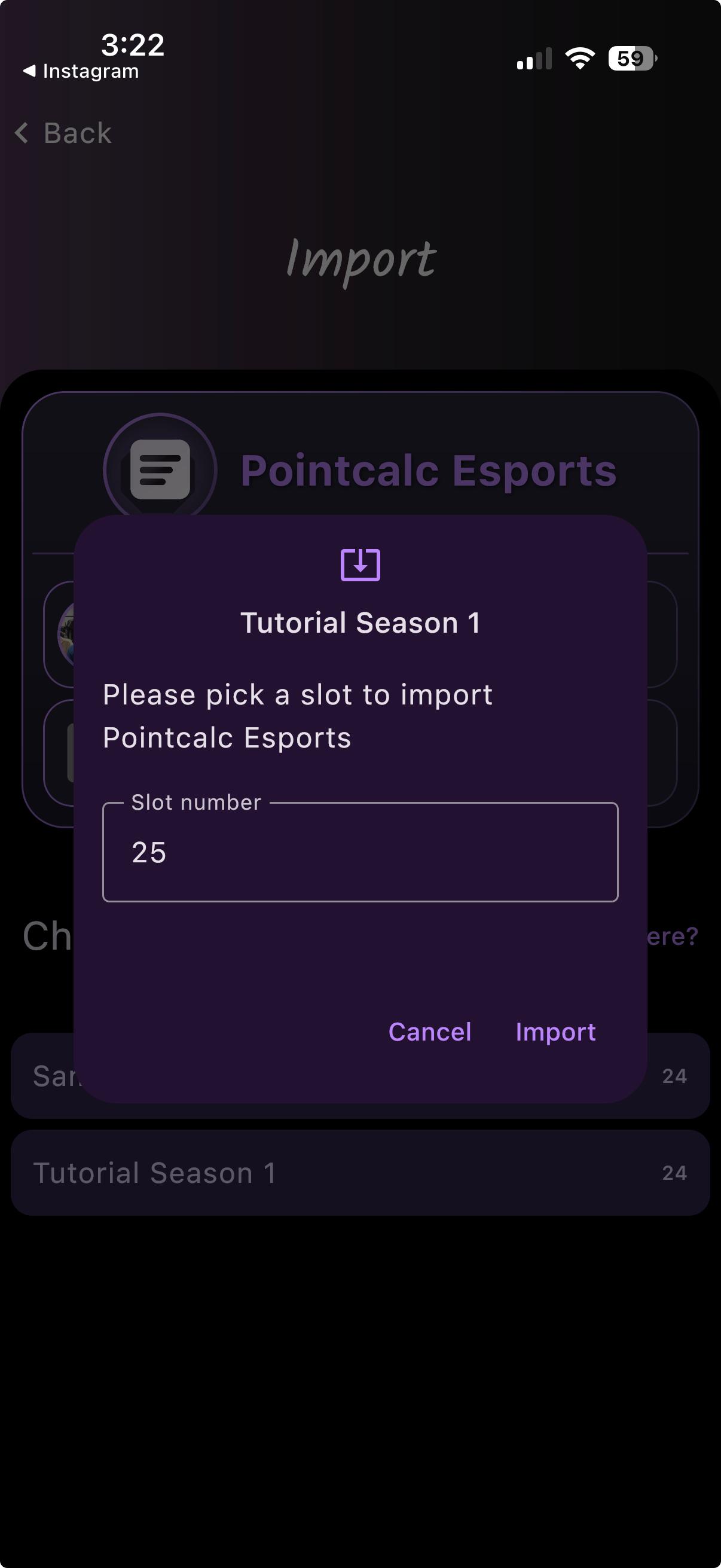
Import a Team Card
When you import one, choose which tournament it goes into and which slot it takes.
Back up your data
Keep your tournaments safe and move them to a new phone.
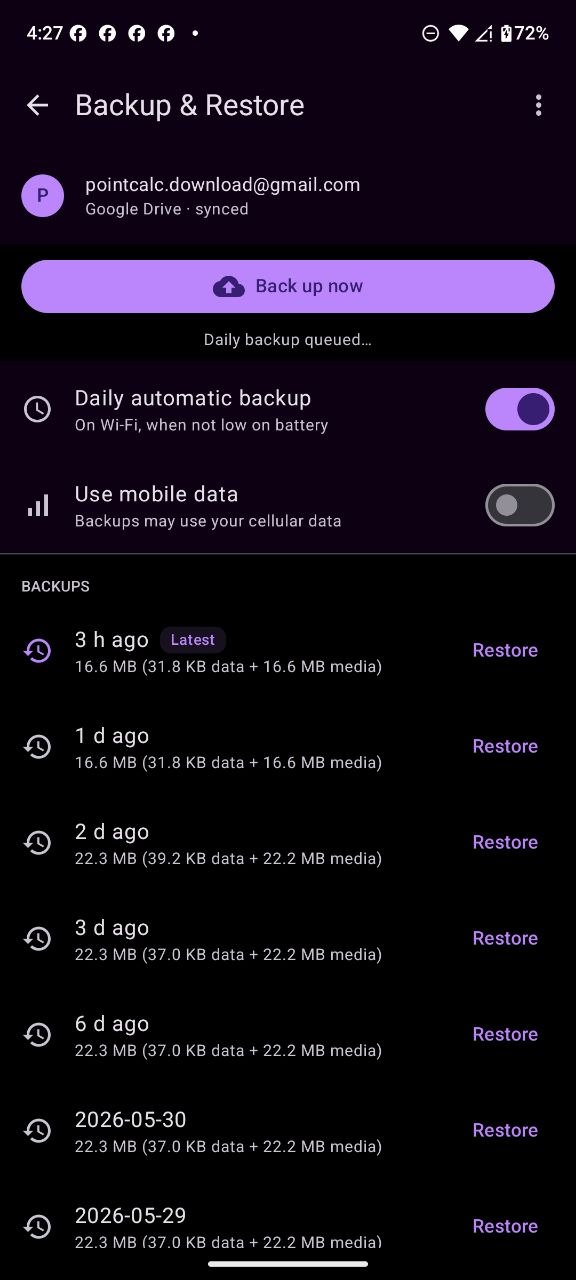
On Android — Google Drive
PointCalc backs up to your Google Drive automatically (daily, on Wi-Fi) or whenever you tap “Back up now”. Restore any earlier backup from the list.
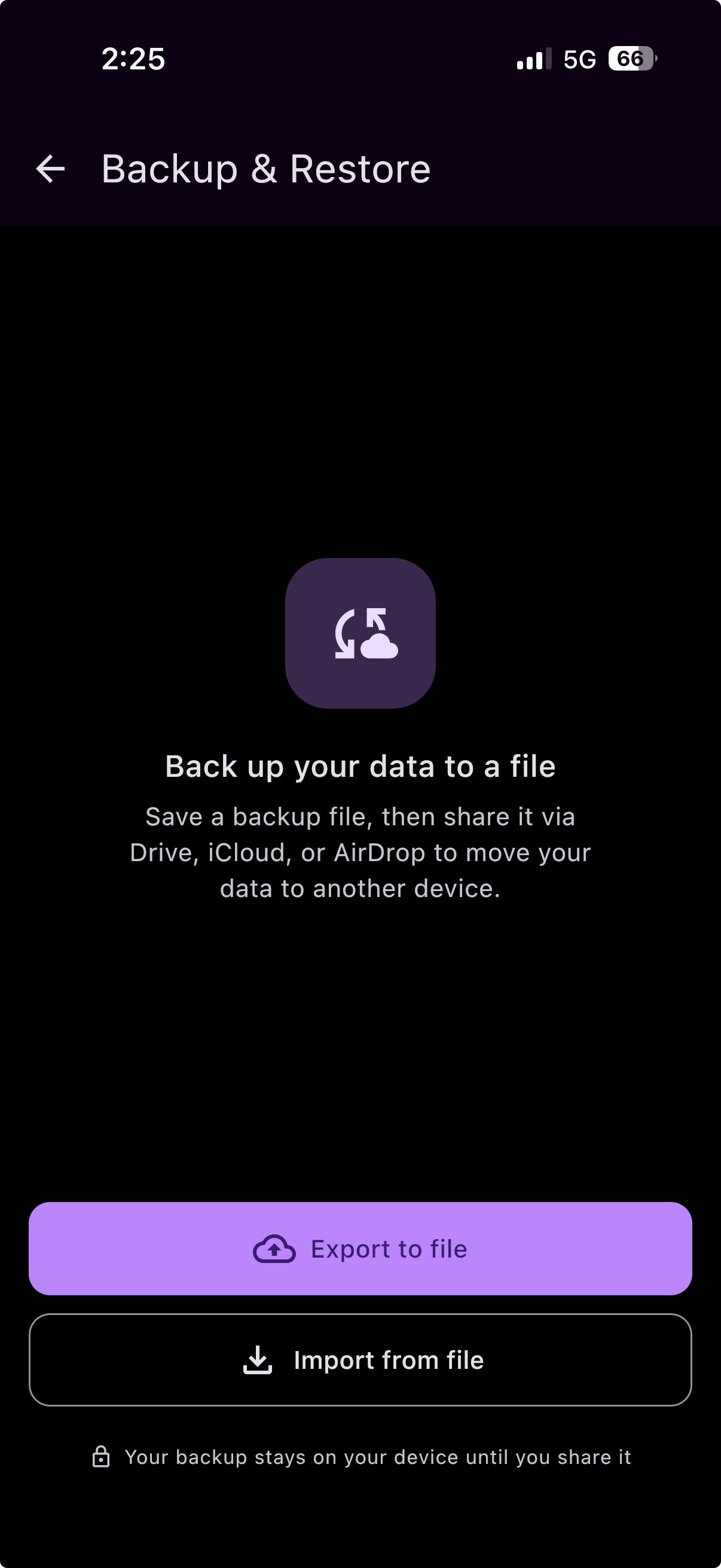
On iPhone — a backup file
Export a backup file and share it through Drive, iCloud or AirDrop, then import it on the other device. This file method works on Android too.
Merging & flattening
For season-long stats that span several tournaments.
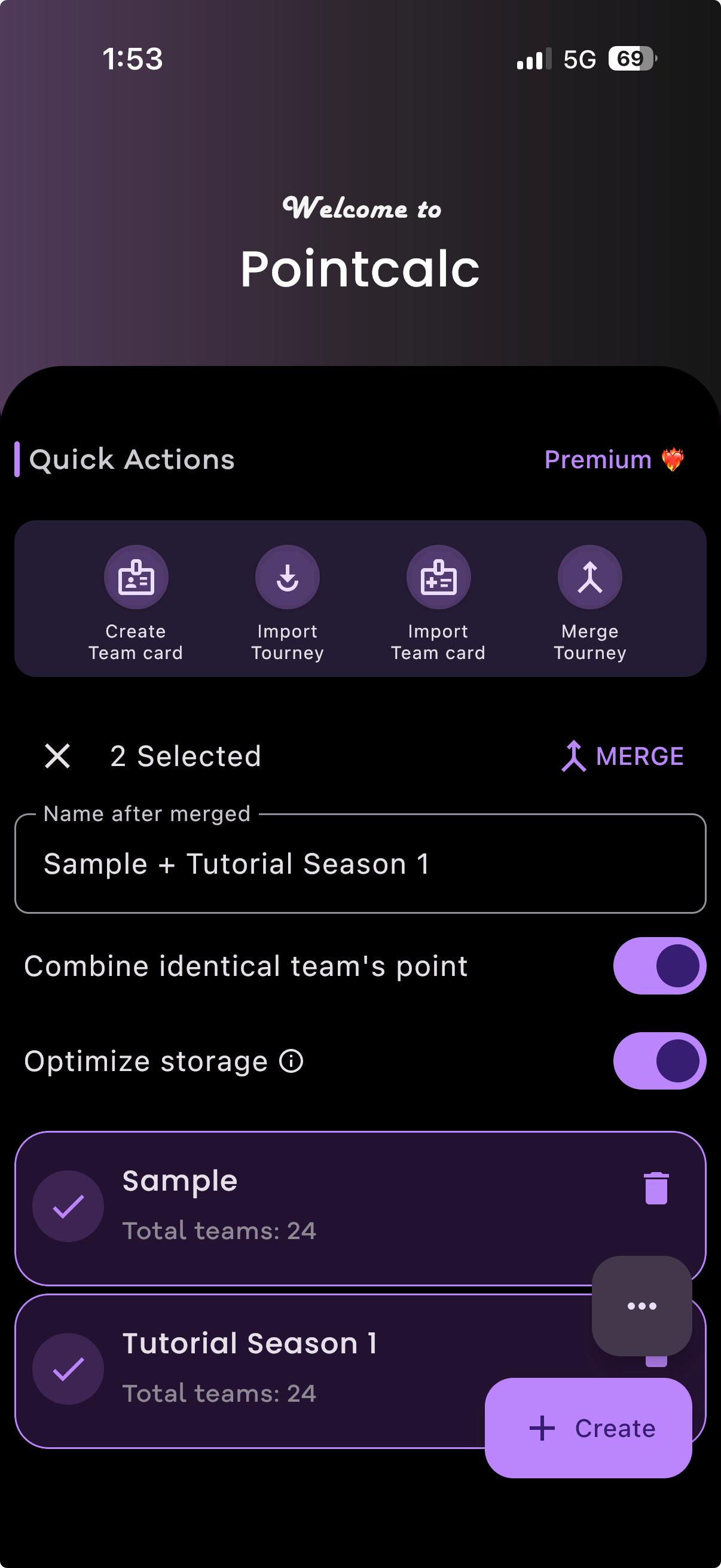
Merge tournaments
Combine two or more tournaments into one set of weekly or monthly standings. It adds up the points for teams that appear in more than one.
Flatten to edit freely
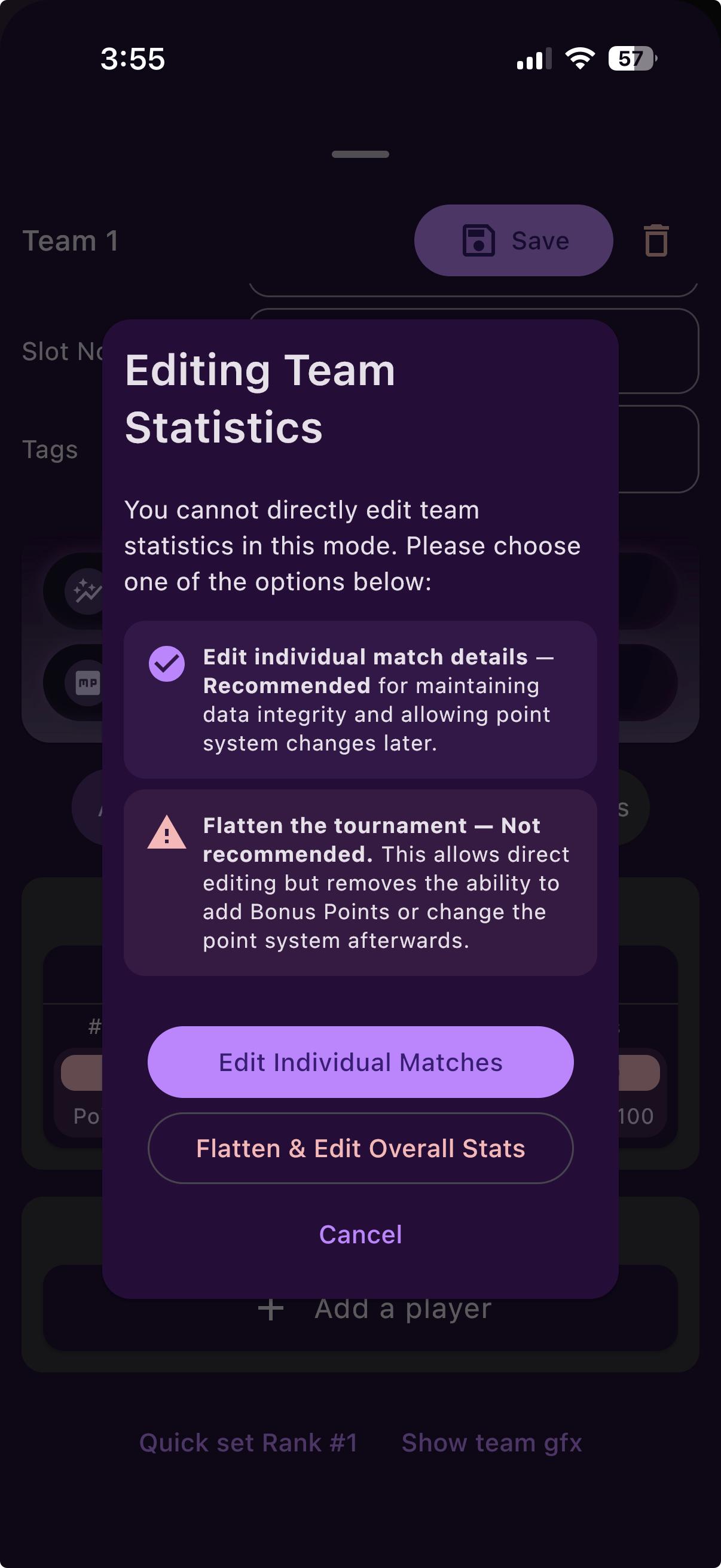
If you’d rather a merged (or any) tournament stand on its own, flatten it. It becomes a separate tournament you can edit stat by stat — matches, placement points, kill points and so on.